Guide · 7 min read · Updated August 29, 2026
How to Make a Simpsons Style Video: The Full 3 Step Workflow
A Simpsons style video is easy to fake for one frame and brutal to sustain for a full minute. Getting sixty seconds of that yellow sitcom cartoon look, same character, same colors, same world, cut to a script with narration, is where everyone making a Simpsons style AI video stalls. This guide is the shortcut: you lock the style once, save it as a template, and let Calliope shoot the whole thing.
What you need
- A free Calliope account at https://calliopelabs.co
- The style grid at cartoonprompts.com, where the reusable style blocks live
- Four or five reference images in the cartoon look you want to match
- A topic, or nothing at all, because the agent can propose one
1. Lock the look before you shoot
Do not describe the style in your own words. Every time you retype a look from memory you write a slightly different description, and a slightly different description produces a slightly different character. That is how a cartoon style AI video ends up with a hero whose hair changes shade at shot four. Copy a block that was already written to be reused, and reuse it exactly.
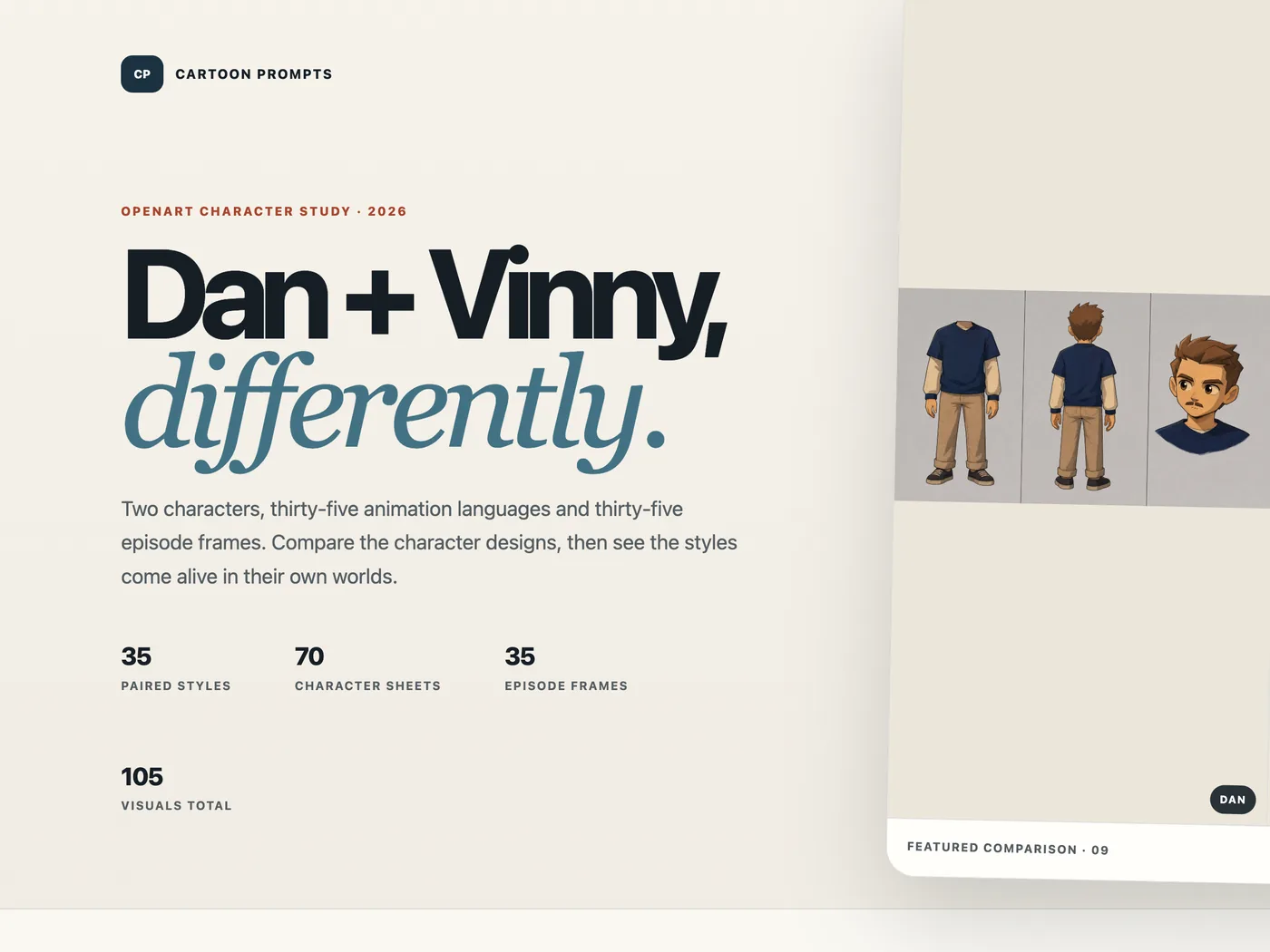
- Open cartoonprompts.com and let the style grid load.
- Scroll past the 2.5D and the 3D entries until you reach 16 · 2D · The Simpsons: rounded sitcom forms, bold ink and bright cel color.
- Hit Copy G-panel prompt. That block is the thing you will paste in step 2.
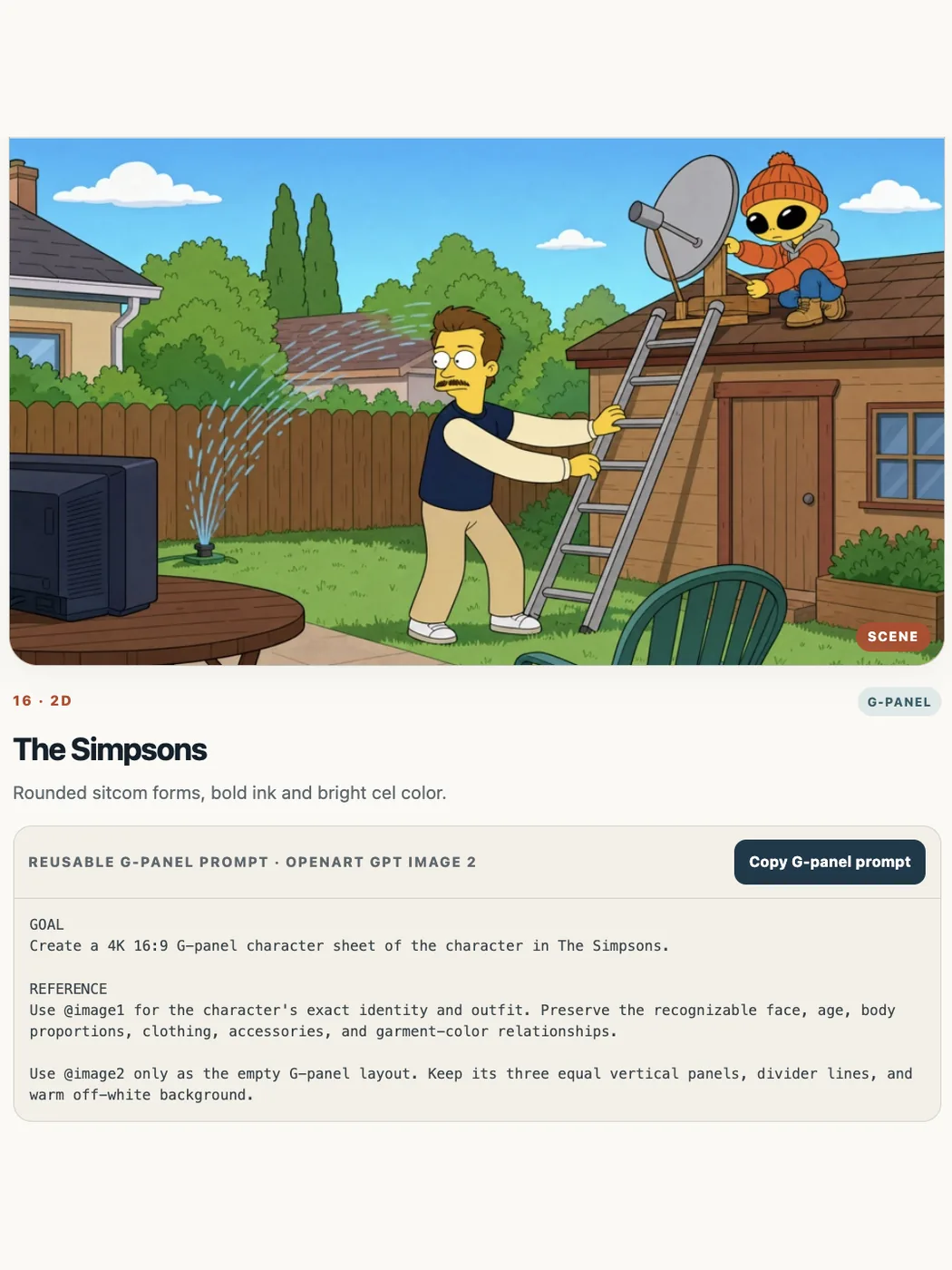
The card shows what you are copying:
GOAL
Create a 4K 16:9 G-panel character sheet of the character in The Simpsons.

REFERENCE
Use @image1 for the character's exact identity and outfit. Preserve the recognizable face, age, body proportions, clothing, accessories, and garment-color relationships.

Use @image2 only as the empty G-panel layout. Keep its three equal vertical panels, divider lines, and warm off-white background.
Read what that block is actually doing. It is not asking for a picture. It is asking for a sheet: one character, several angles and expressions, laid out in equal panels on a flat background. A per image prompt describes a moment, so the model is free to reinvent everything that the moment did not mention. A character sheet prompt describes a person, so every later shot has something to conform to.
Why this matters. A reusable G-panel prompt is a character sheet, not a one-off image prompt. It pins identity, outfit and palette, so scene 7 still looks like scene 1.
2. Turn the style into a template
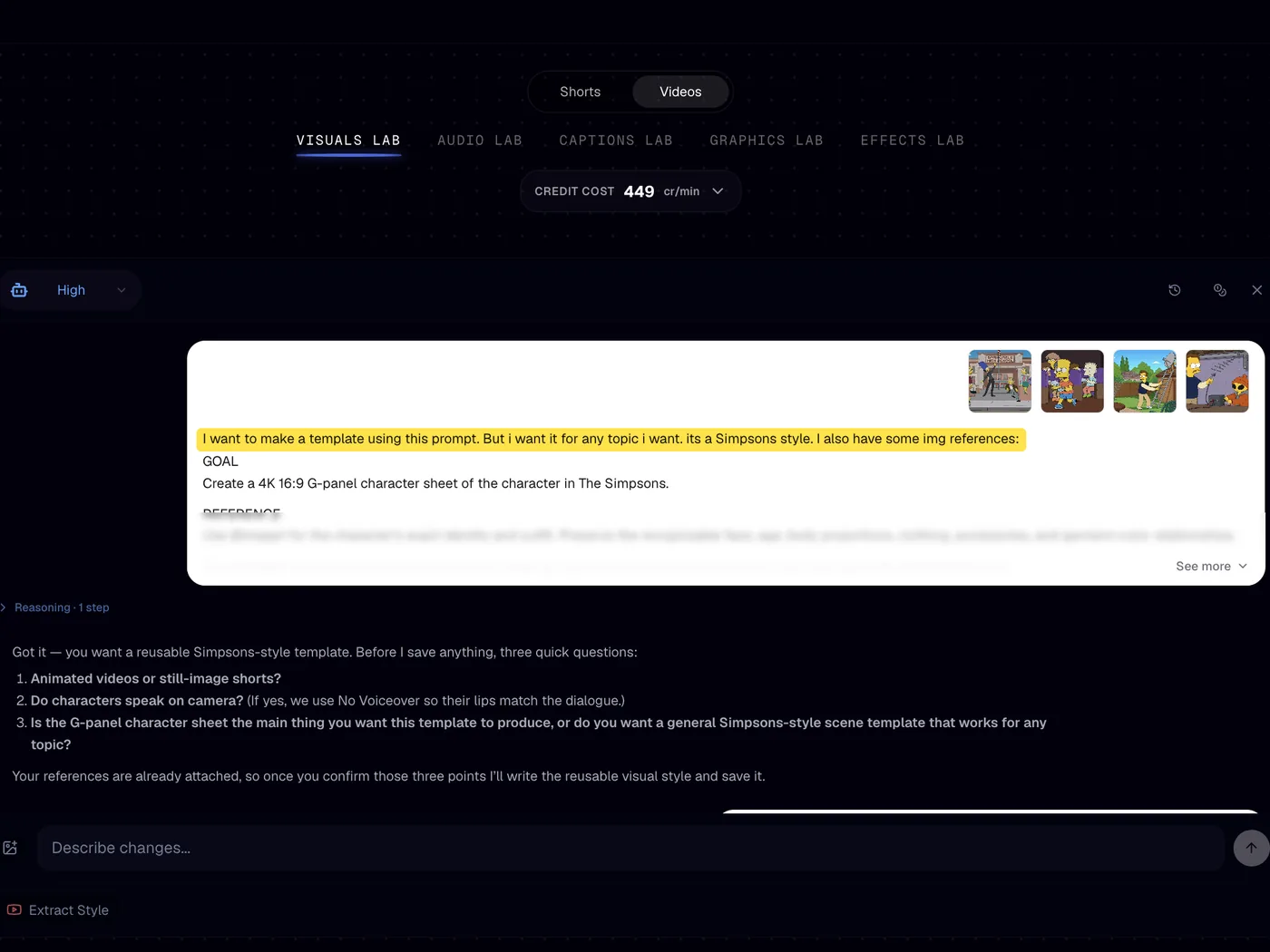
Now you turn a copied block into something Calliope will apply to every future project. Open the Visuals Lab and talk to the chat until the look is locked in. Paste the block, then say in plain language what you want out of it.
I want to make a template using this prompt. But i want it for any topic i want. its a Simpsons style. I also have some img references:The agent will not save anything blind. It comes back with a short list of questions first: animated videos or still-image Shorts, whether characters speak on camera, and whether you want the character sheet itself or a general scene style that works for any topic. Answer those three and it writes the reusable visual style for you.
- Paste the G-panel prompt you copied in step 1, and tell it you want the style reusable for any topic.
- Drop in your reference images in that cartoon style so the model has something to match, not just words.
- Set the quality: animated on, voiceover on, video Medium and image Extra High.
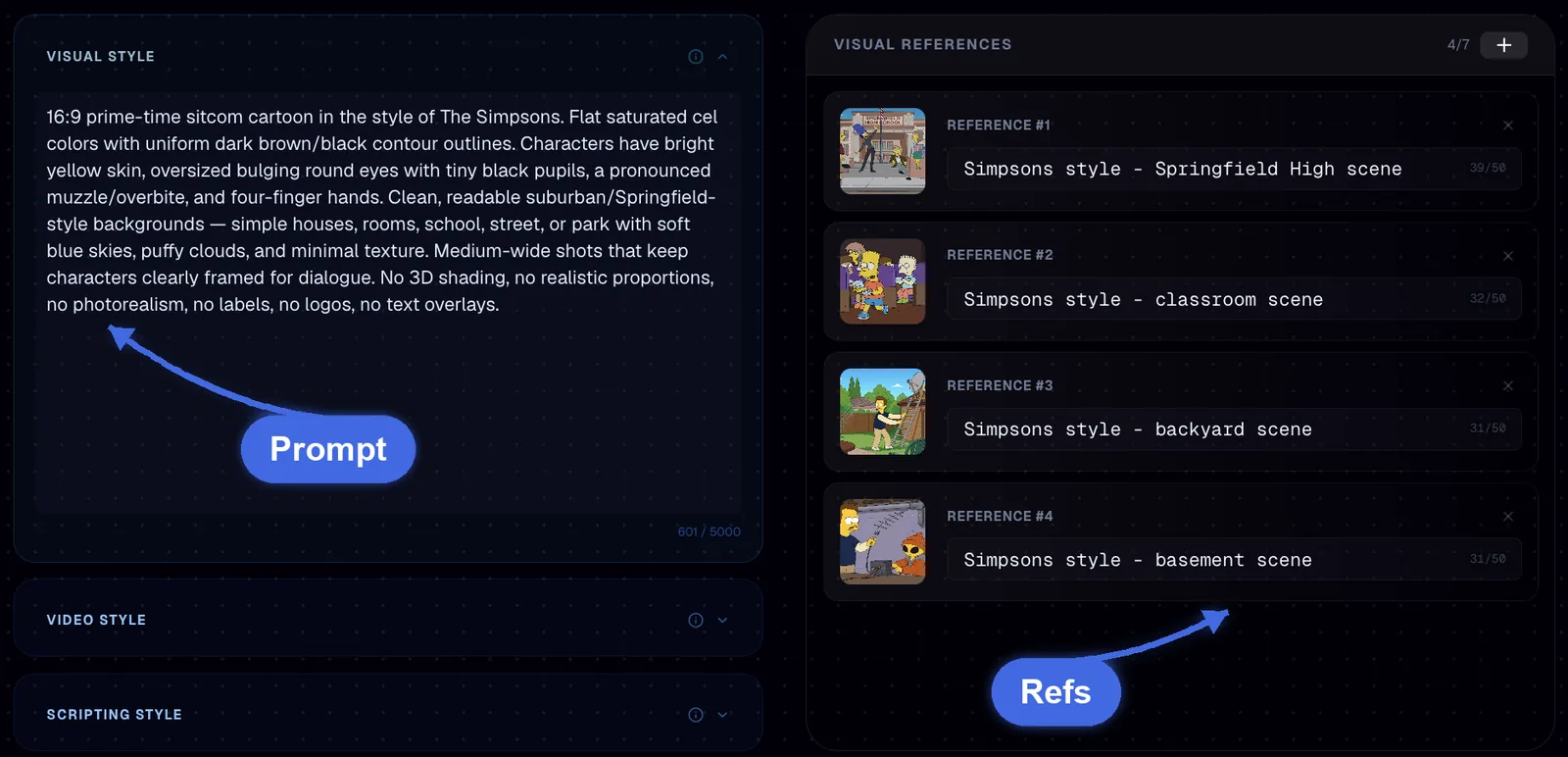
Pick your references the way a colorist would, not the way a fan would. What pins a palette is coverage of lighting conditions, not more pictures of the same shot. Four references that span a bright exterior street, a flat lit interior classroom, a daylight backyard and a dim basement teach the style what yellow skin does in shade, what the outline weight is when the light drops, and how saturated the sky is allowed to get. Four near identical mid shots teach it nothing, and the first time your script asks for a night scene the model guesses.
Name each reference with the style first and the scene it covers second, the way the saved list reads: Simpsons style, Springfield High scene, then classroom, then backyard, then basement. Once saved, the left panel holds a compact visual style description: flat saturated cel colors, uniform dark contour outlines, bright yellow skin, oversized round eyes, four finger hands, readable suburban backgrounds, no 3D shading, no photorealism, no text overlays. That negative half matters as much as the positive half, because it is the part that stops the render sliding back toward a glossy 3D render.
This is the whole point of doing step 2 once. The Project Template is topic free, so next week's video about mortgages and next month's video about Roman history both come out in the same cartoon world, with no restyling and no reprompting.
3. Generate the video
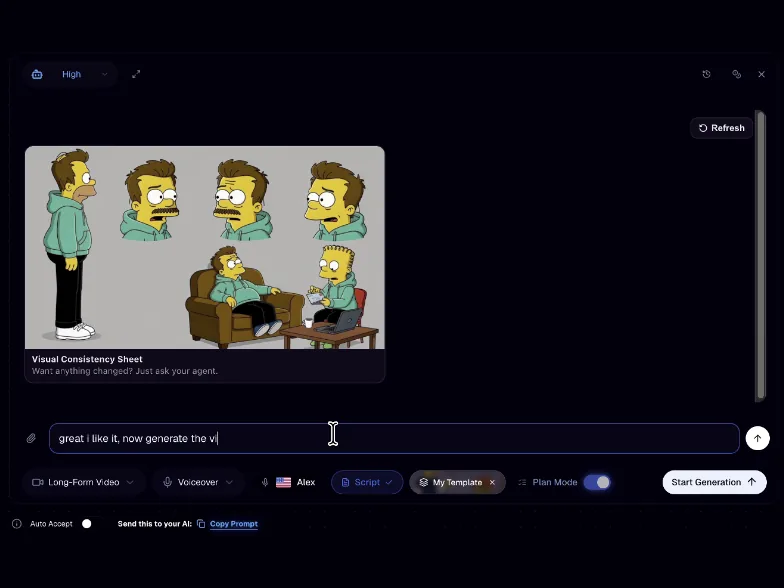
Step 3 is the short one, because the hard decisions are already saved. From here the Creation Lab does the work: it writes the script off your topic, then builds the character reference sheet before it renders a single clip.
That sheet is your approval gate. You are looking at one image that decides the next sixty seconds: face, hair, outfit, color of every garment, proportions. If the jacket is the wrong green or the character reads ten years too old, say so in the chat and let it redo the sheet. Fixing it here costs one image. Fixing it after generation means every clip is wrong in the same way.
- Open the Creation Lab and hand the agent your idea, or ask it for one.
- Let it build the script plus the character reference sheet.
- Hit Start Generation. Done.
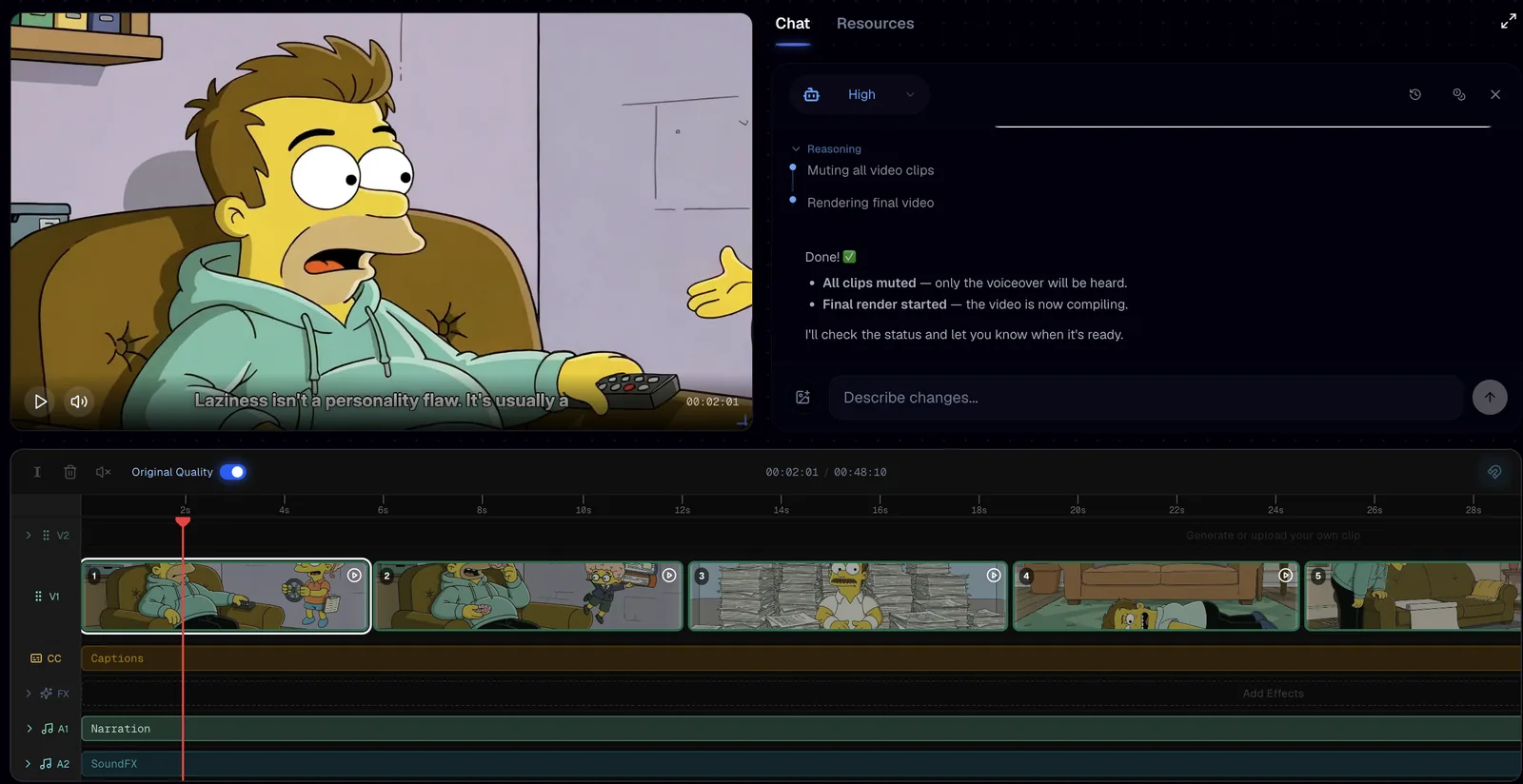
What you get back is not a single clip to accept or reject. It is a full timeline: the animated clips, the captions, the narration and the SFX, all separate, all editable. Regenerate one shot that came out flat and the other twenty stay exactly as they were.
Common mistakes
- Rewriting the style in your own words instead of pasting the copied block, which is the single fastest way to get drift between shots.
- Uploading four references of the same framing and lighting, so the palette is never pinned and night scenes come out invented.
- Approving a character reference sheet with the wrong outfit or hair color, which then repeats identically across every clip in the video.
- Dropping image quality below Extra High, because thin ink outlines and flat cel fills are exactly what a soft render destroys first.
- Asking for the show's actual named characters instead of your own character in that style, which is both a legal problem and a worse video.
FAQ
How do I make a Simpsons style video with AI?
Copy a reusable G-panel prompt from a cartoon style grid, paste it into the Visuals Lab in Calliope with four or five reference images, and save it as a Project Template with video quality Medium and image quality Extra High. Then open the Creation Lab, give it a topic, approve the character reference sheet it builds, and hit Start Generation. The script, narration, captions and animated clips of your Simpsons style AI video all come out of that one template.
Why does my character change between shots in a cartoon style AI video?
Your character changes between shots because each shot was described separately, so nothing forced the second shot to agree with the first. Drift shows up as small betrayals: the shirt shifts a tone, the hair loses its shape, the outline gets thicker, the face ages a few years. A character reference sheet fixes it, because every shot is then matched against one approved image instead of against a paragraph of text.
How many reference images do I need?
Four is enough if they cover different lighting and different settings, for example a bright exterior, an interior room, a daylight garden and a dark basement. Coverage beats quantity, since near identical images give the style nothing new to learn. Add more only when your script needs a condition your existing references do not show.
Can I publish a Simpsons style video commercially?
Treat the style as inspiration and the characters as yours. Making original characters in a yellow sitcom cartoon look is normal creative practice, while reproducing the show's named characters, logos or settings is not, and Calliope is not affiliated with or endorsed by the show or its rights holders. If the video is commercial, get your own legal read before you publish.
Make your own
Same three steps, any topic you want, from a copied style block to a narrated video on a timeline. Start free at https://calliopelabs.co and plan your first video before you spend a credit.
Take the whole guide with you
Simpsons style guide (PDF, 3 pages). Same content, laid out to print or to keep on your phone while you build.
Keep reading
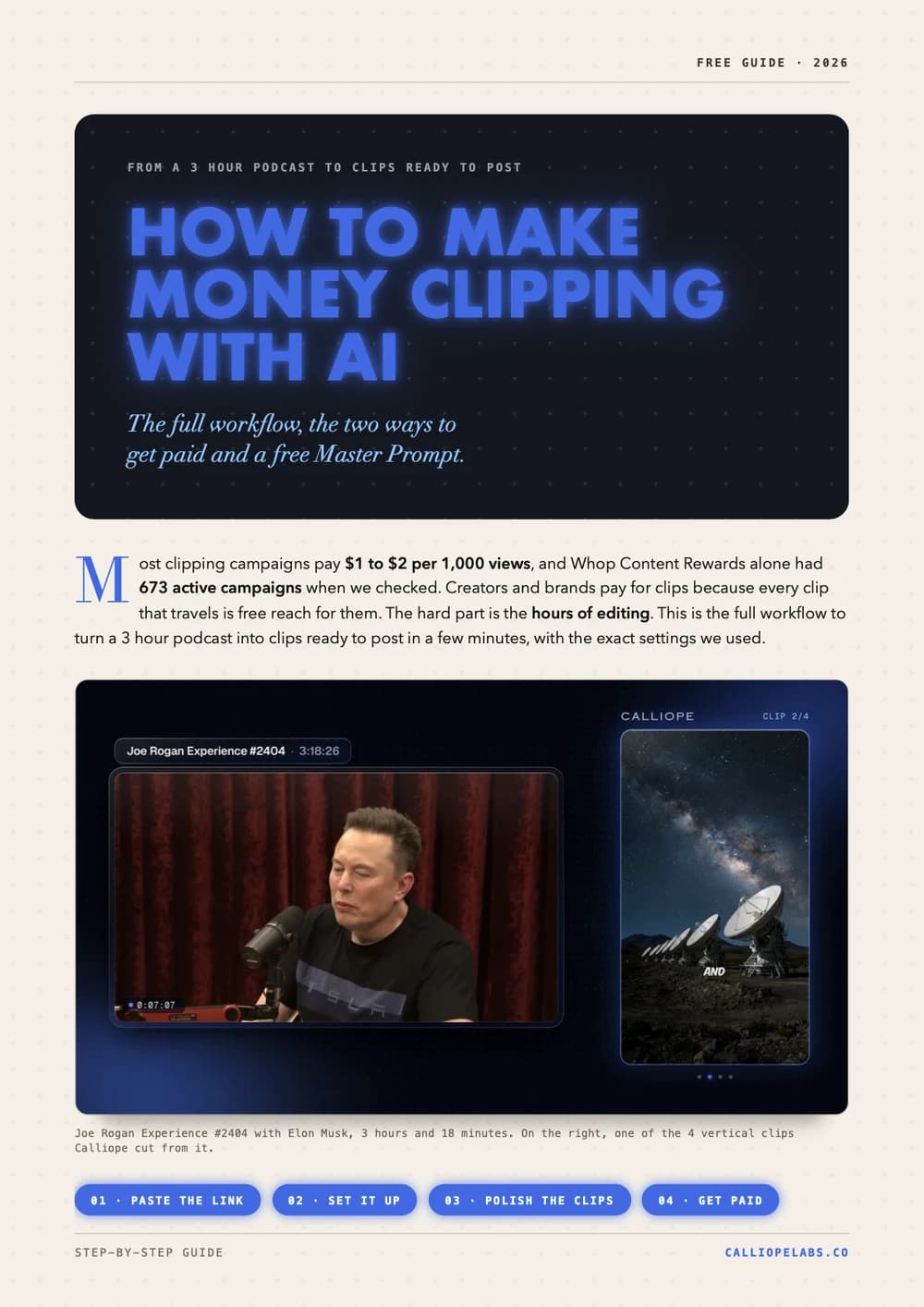
Make money clipping with AI
Turn a 3 hour podcast into vertical clips in minutes, find campaigns that pay $1 to $2 per 1,000 views, and copy a free Master Prompt for AI agents.
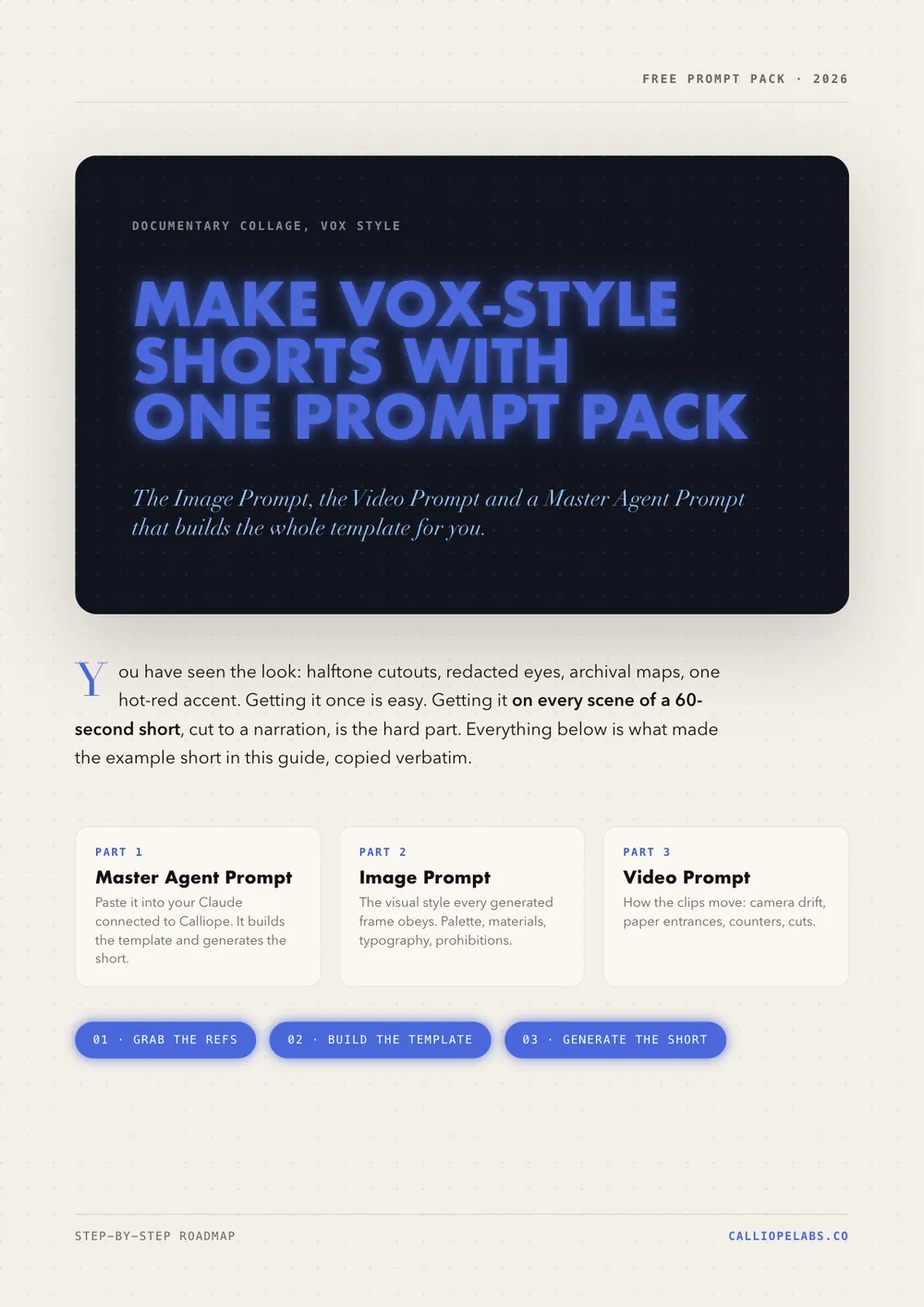
Make Vox style shorts with one prompt pack
The Image Prompt, the Video Prompt and a Master Agent Prompt that build the whole Vox style documentary collage template for you. Copy them verbatim.
Make a 2D viking video
A channel with 878 subscribers cleared 367,000 views in 13 days with one stick figure viking video. Clone the look, write your own script, generate.
Make an ancient humans video
Clone the look of a video that already works, turn it into a reusable template, and generate your own 2D animated history shorts.