Guide · 9 min read · Updated October 1, 2026
How to Make Money by Clipping other people's Stuff (With AI): Master Prompt & Full Guide
Clipping is one of the simplest ways to make money online right now. You take a long video (a podcast, a stream, a full match), cut its best moments into vertical clips and post them. Creators and brands pay for that, because every clip that travels is free reach for them.
There are two ways to make money with clips. One is fragile and the other one actually pays. I break both down at the end, right before the Master Prompt: a copy and paste prompt that turns an AI agent into a clipper on your own computer.
But first, the part that burns out most clippers: the hours of editing. Below is the full workflow to turn a 3 hour podcast into clips ready to post in a few minutes, with the exact settings we used.
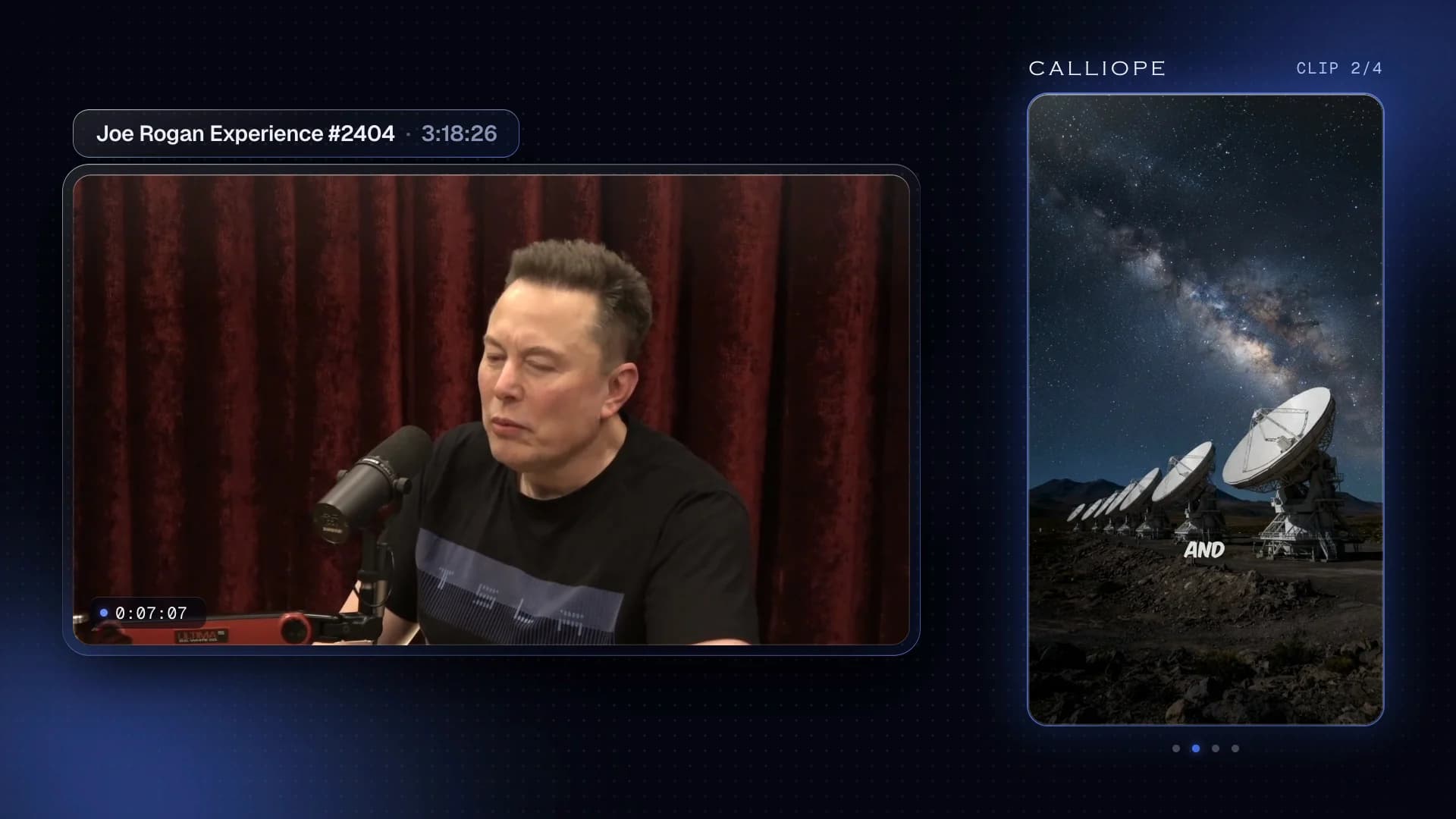
What you need
- A Calliope account at calliopelabs.co/clipping.
- A long video: a YouTube link of up to 10 hours, or your own file (MP4, MOV or WEBM, up to 5 GB).
- About 5 minutes. The rest runs on its own.
1. Paste the link
Open Clipping from the sidebar and paste the YouTube link, or click Upload to use your own file. Calliope loads a preview with the title, the channel and the length.
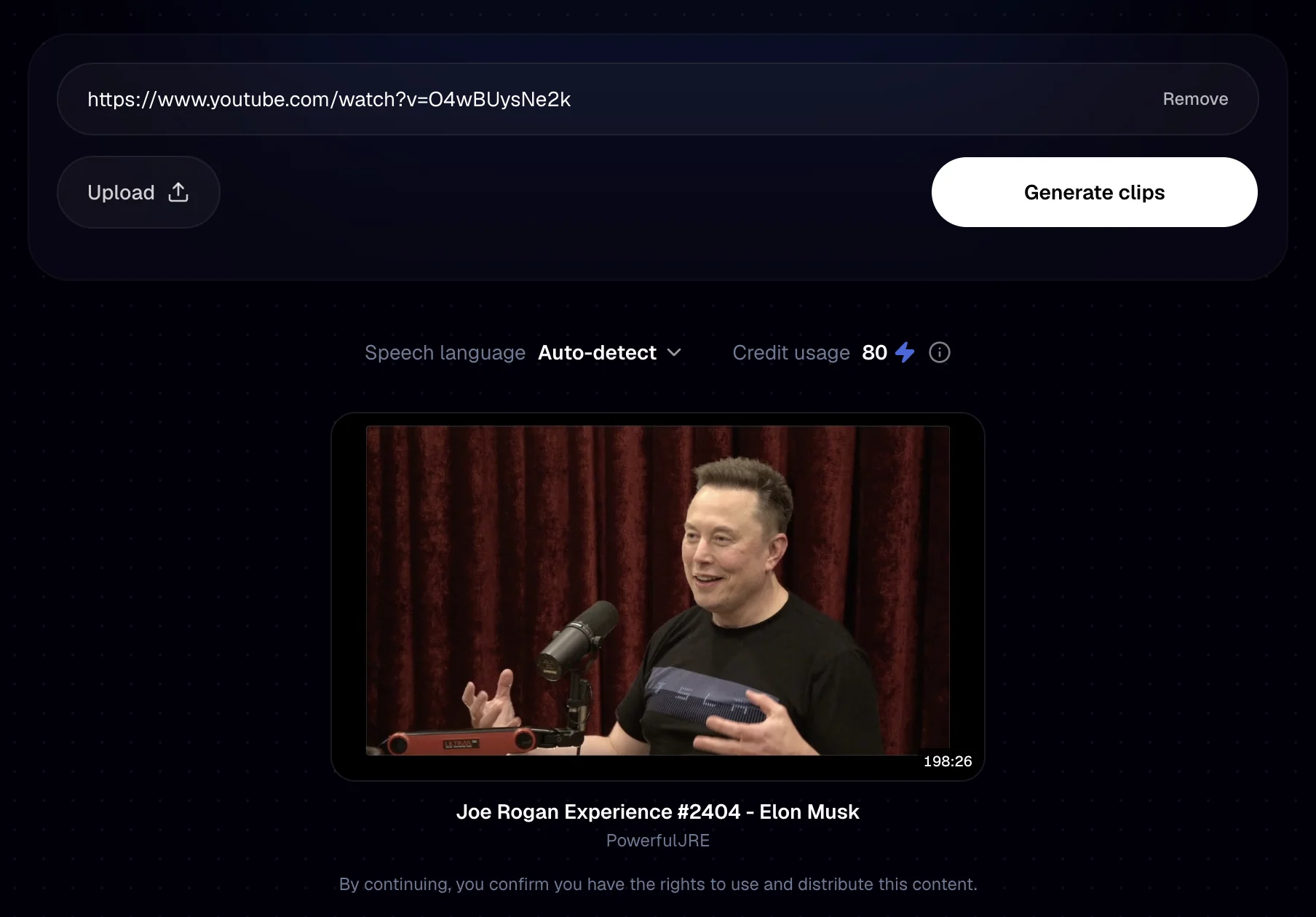
Two limits worth knowing: the video can be up to 10 hours long, but each batch scans a range of up to 2 hours. That range is what you pay for, so covering a 3 hour episode takes two batches. Most of the time you won't need that, as you'll see in step 2.
Under the preview there's one line that matters later: "By continuing, you confirm you have the rights to use and distribute this content." Keep it in mind for the money section.
2. Choose the settings
First, two tabs. Auto clip cuts the video into clips. Captions only is for videos you upload: it adds editable captions without cutting or reframing anything.
Then the clip model:
- Smart reads everything that's said in your range, picks the strongest moments and cuts them, with the speaker framed for vertical. It uses credits.
- Fast splits the video into equal parts. It doesn't pick moments or reframe, but it's unlimited on every paid plan.
The rest of the settings, with the values we used for the Rogan episode:
- Clips: 4. You can ask for up to 10. Smart gives you up to that number: if the range only has 3 strong moments, you get 3.
- Clip length: 30s to 59s. From under 30 seconds to 10 minutes. Auto keeps every clip under 3 minutes.
- Auto headline: on. It writes a hook that stays on screen for the first 5 seconds.
- Speakers: 2. The language is detected on its own, and telling it how many people talk helps it follow the conversation.
- B-roll: AI B-roll at Medium. Stock footage is free. AI B-roll costs extra per minute of clip, depending on the quality.
- Include specific moments. Optional. We asked for self-contained moments with a strong spoken hook. You can also ask for something concrete, like "Elon's promise about aliens". Leave it empty and Smart decides.
- Clip range: 0:05:00 to 0:15:00. This is the credit saver: drag the handles to the part you care about, and you only pay for those minutes.
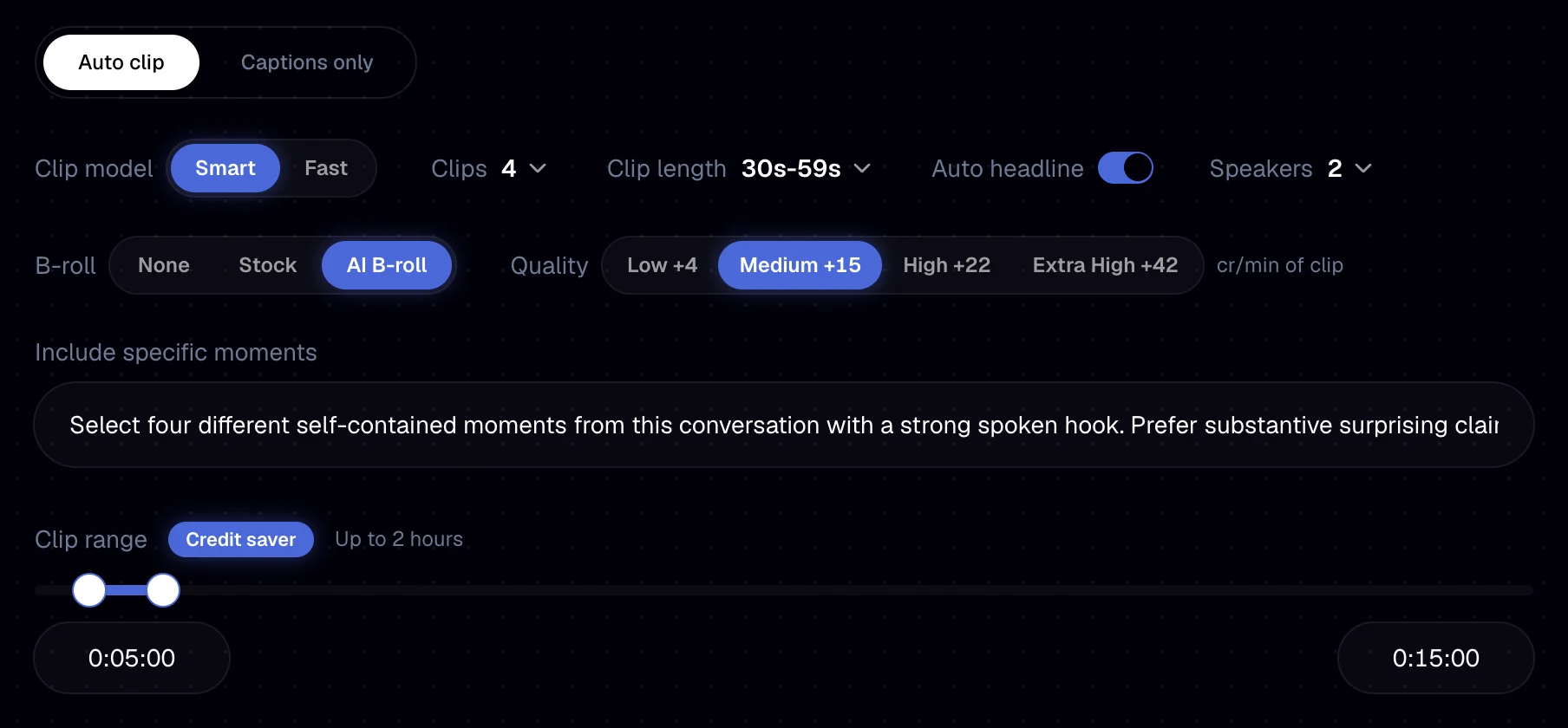
What it costs. Smart uses 4 credits per minute of range, or 2 on the Creator plan, and the price is the same whether you get 1 clip or 10. Our 10 minute range cost 20 credits on Creator. The counter showed 80 because it also reserves the AI B-roll, and you're only charged for the images actually delivered. On the Creator plan that's about $0.02 per minute of video: a full 2 hour range is 240 credits, around $2.40.
3. Generate and find your clips
Click Generate clips. The batch shows up in Recent Clips as Queued, then Processing, and you can close the tab in the meantime. Every source video gets its own deck, with the original thumbnail on the cover. Click a deck to watch its clips full screen, then Open in editor on any of them.
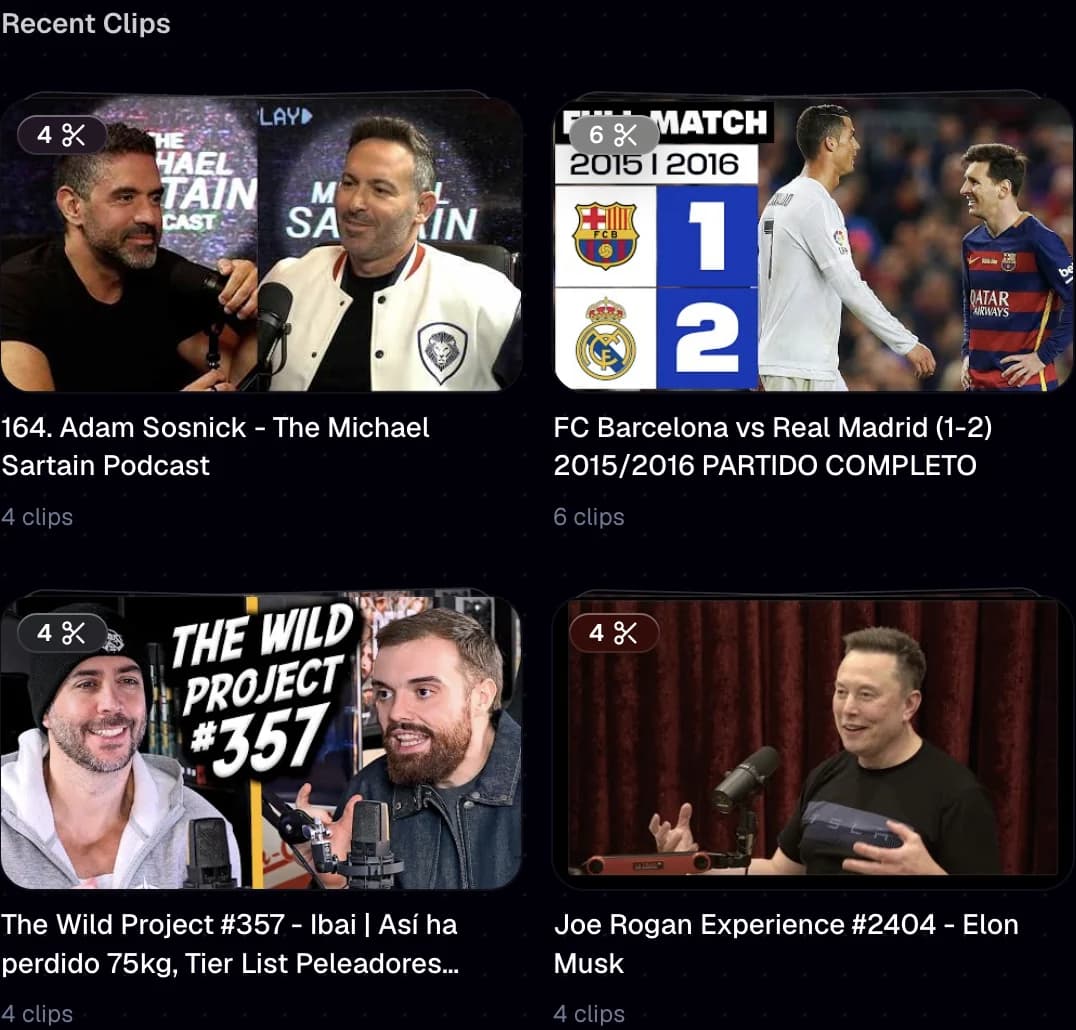
Every clip comes out vertical (1080 x 1920), with the speaker framed, captions, the hook headline and the B-roll you asked for. Plenty of them are ready to post as they are. The next steps are for the ones you want to push further.
Calliope vs OpusClip: the price
Here's the math, no tricks: in Calliope you pay for the minutes you ask it to analyze, not per clip.
- A 1h45m podcast is 212 credits, about $2.10 on the Creator plan.
- OpusClip Pro charges about $10.20 for the same 1h45m.
- That's ~$0.02 per minute vs ~$0.10 per minute: 4.9x cheaper, and still 2.4x cheaper on our Starter plan.
On top of that, Fast clips and Captions only are unlimited on every paid plan. In fairness: Calliope currently makes up to 10 clips at once.
4. Open the editor
A clip is not a flat video. It's a timeline, with captions, headline, B-roll, sound effects and footage, each on its own track. That's the difference between a clip you can fix and a clip you have to throw away.
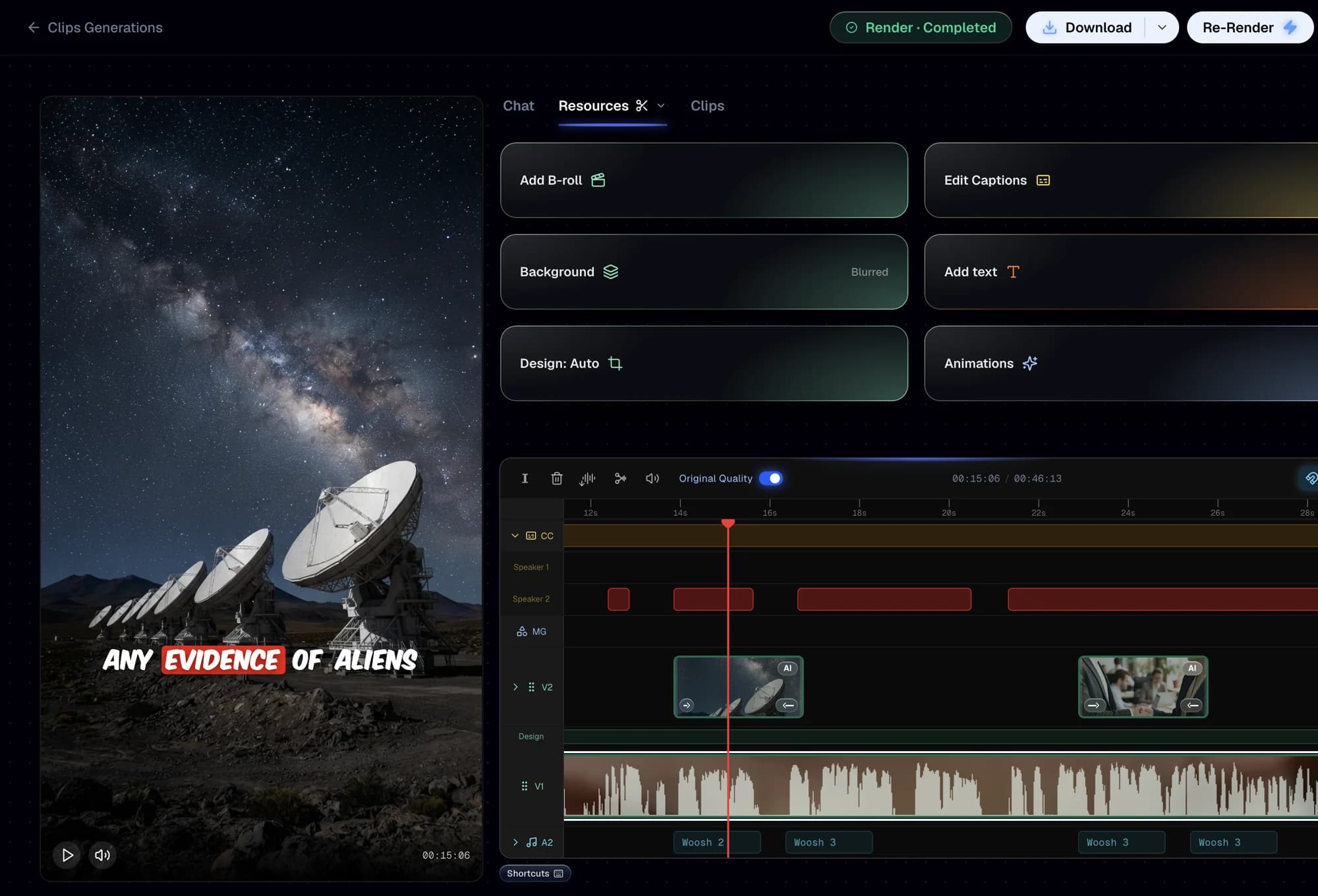
The player is on the left, the tools (Resources) on the right and the timeline below. The Clips tab lists every clip from the same video, so you can jump between them. The hook headline is just text: click its badge to rewrite it, or drag it in the player.
5. Pick the framing
Design decides how the horizontal video fits the vertical frame:
- Auto chooses for you. That's how every clip starts.
- Fill crops tight on the face.
- Fill Tracking follows one person. Let it detect them, or draw a box around the one you want.
- Fit keeps the whole frame over a blurred background.
- Split stacks the speaker on top of something else.
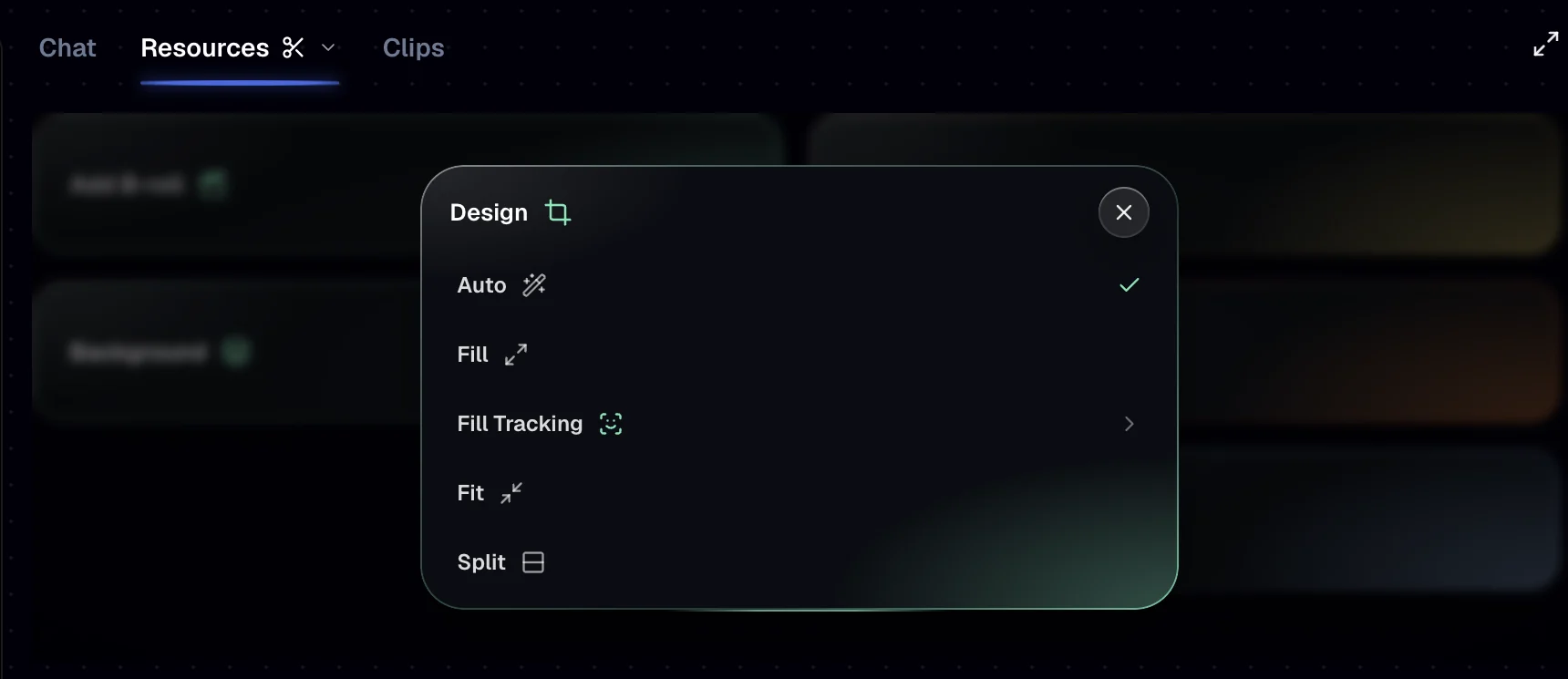
Changing the framing takes a minute or two, because the clip is reframed again from the original video.
6. Add a split screen
This is the format that keeps people watching: the speaker on top and something satisfying below. Choose Split in Design and confirm it, which is free. Then open Add B-roll, switch to Split B-roll and open Presets. There are 13: seven ring animations and six ball animations, plus Custom. The bottom half can also be your own file, a stock video or an AI image.
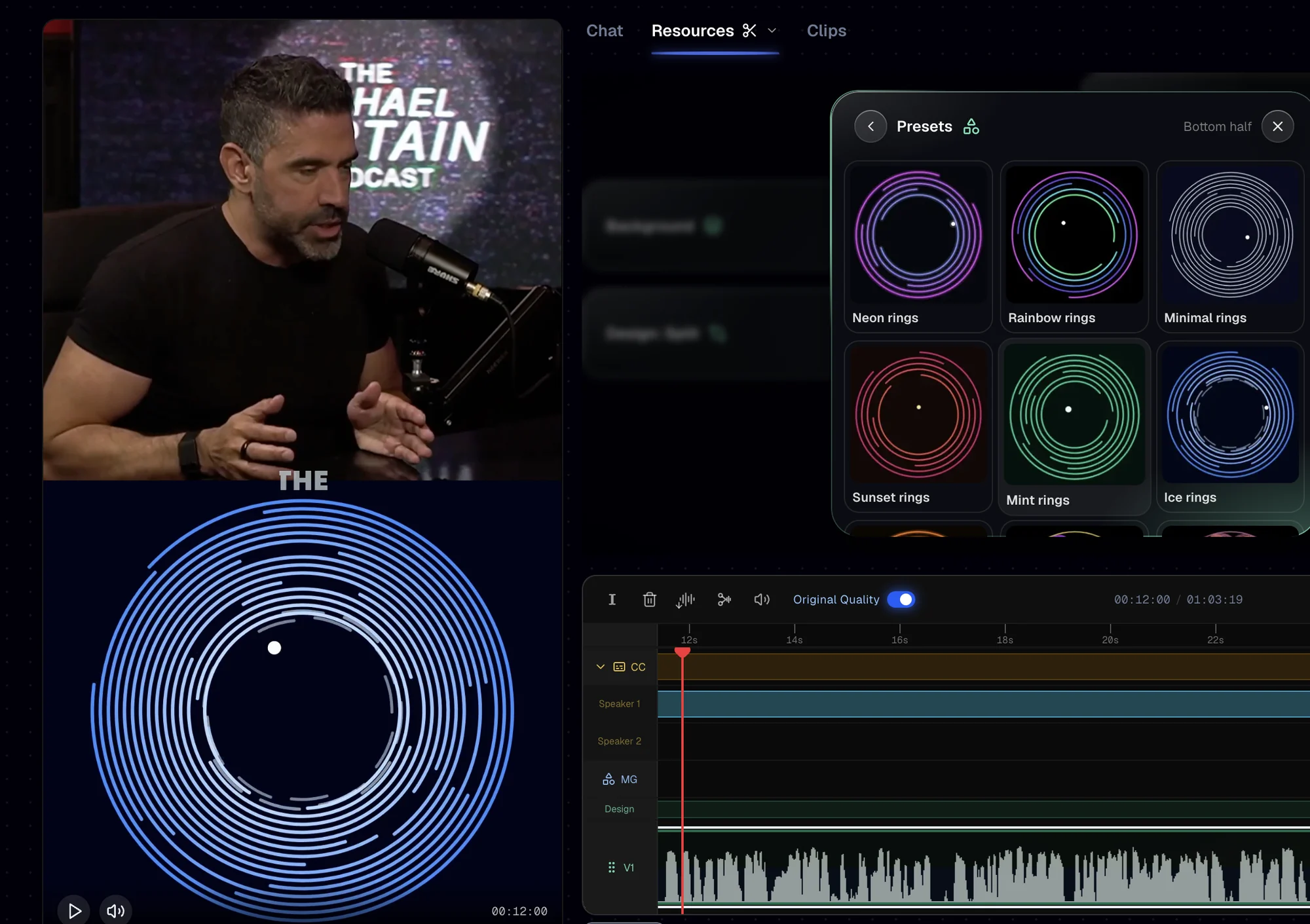
The animation always lasts as long as the Split. Tip: trim and cut silences before adding it, so it fits the final length.
7. Style the captions
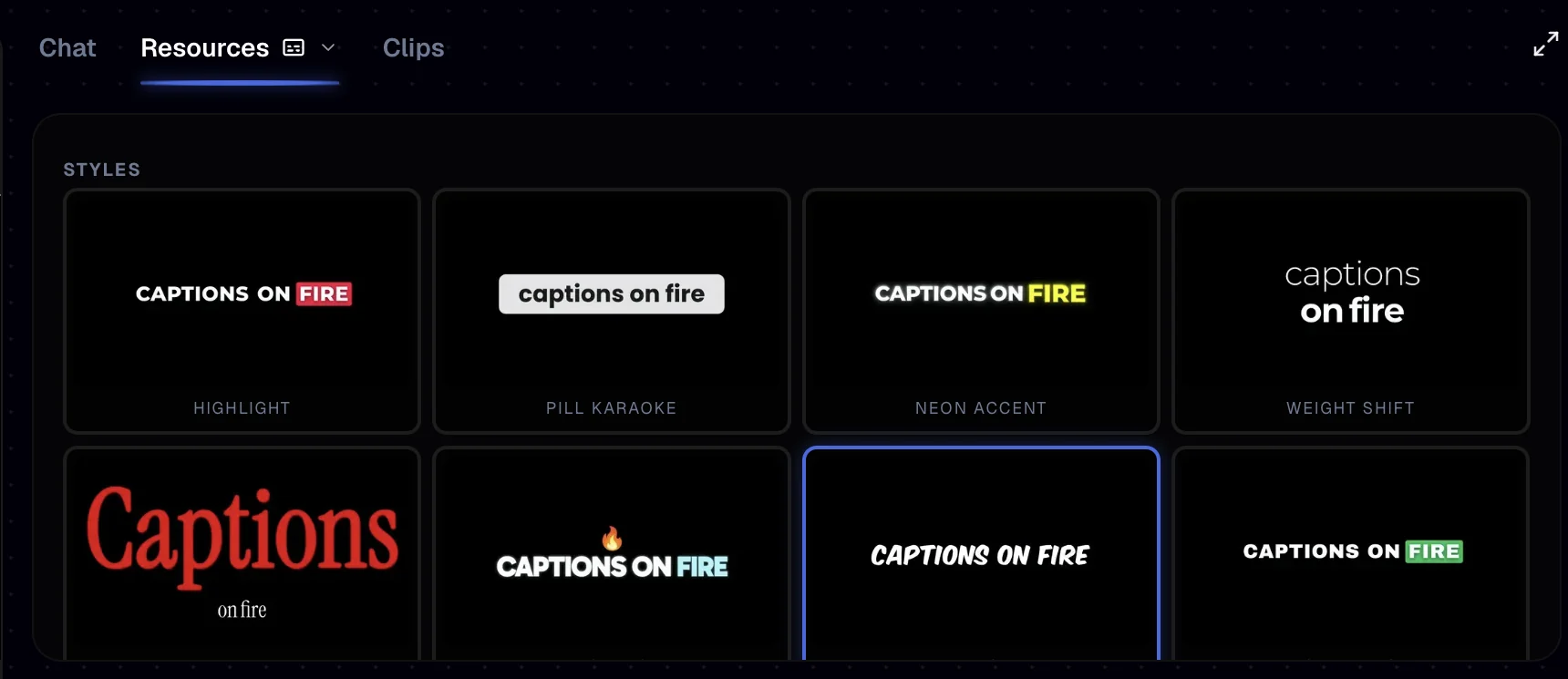
Open Edit Captions and pick one of the 20 styles. Set the position to Top, Center, Bottom or Custom. On a Split, Center puts them right between the two halves. You can also drag them in the player. Then click Save Changes: until you save, it's only a draft. Captions never cost credits.
8. Add B-roll
There are three ways, and two of them are free:
- Stock video B-roll, in one click. It places about 3 stock clips per minute, each with a slide in, a slide out and a whoosh. Click again for a new set.
- Search stock videos. Park the playhead where the shot should go, search for it and click a result: a 3 second shot lands right there.
- AI image B-roll. Choose the quality (Medium is 5 credits per image). Each image is written from what's being said at that moment. Click one to edit its prompt, regenerate it or Animate it into a short video. The button shows the price before you spend anything.
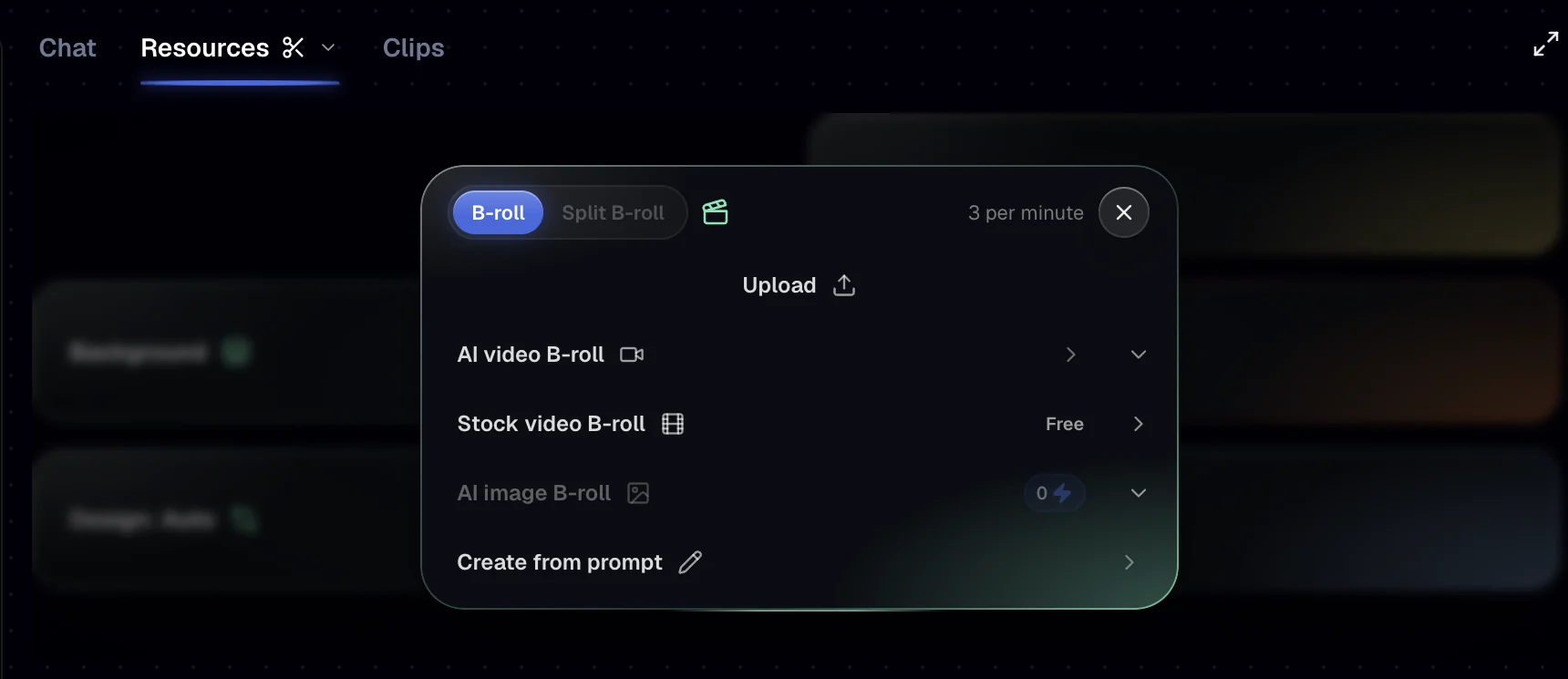
AI image B-roll only fills moments that don't have B-roll yet, so delete the old images first if you want new ones.
9. Export
Click Re-Render to bake your edits into the clip. When it says Completed, click Download. Done.
The two ways to make money with clipping
Now the part you came for. Clips make money in two ways, and they're not equal.
1. Post them on your own accounts. You build a page around a creator or a niche and monetize the views. This is the fragile way. YouTube, TikTok and Facebook all keep reused content out of their payout programs, so a page full of somebody else's podcast clips is the easiest thing to demonetize, and a single copyright claim can take down a clip or the whole account. It only works when the views go somewhere you own: your own info product, a newsletter or an affiliate link. Then the clips are a funnel, not the business.
2. Join clipping campaigns. This is the clean way. Creators and brands publish a campaign with a budget and pay you per 1,000 views on the clips you post. The creator is the one asking for clips, so you have permission. That's what the line under the preview in step 1 was about.
- Whop Content Rewards had 673 active campaigns when we checked, with a median of about $1.10 per 1,000 views. Take Michael Sartain's Clipping Army: $1 per 1K views on TikTok and X, $1.50 on YouTube and $2 on Instagram and Facebook.
- clipeamos.com is the one to check if you speak Spanish: campaigns from Spanish speaking creators and brands like Willyrex or the Kings League, paid per view on TikTok, YouTube and Instagram.
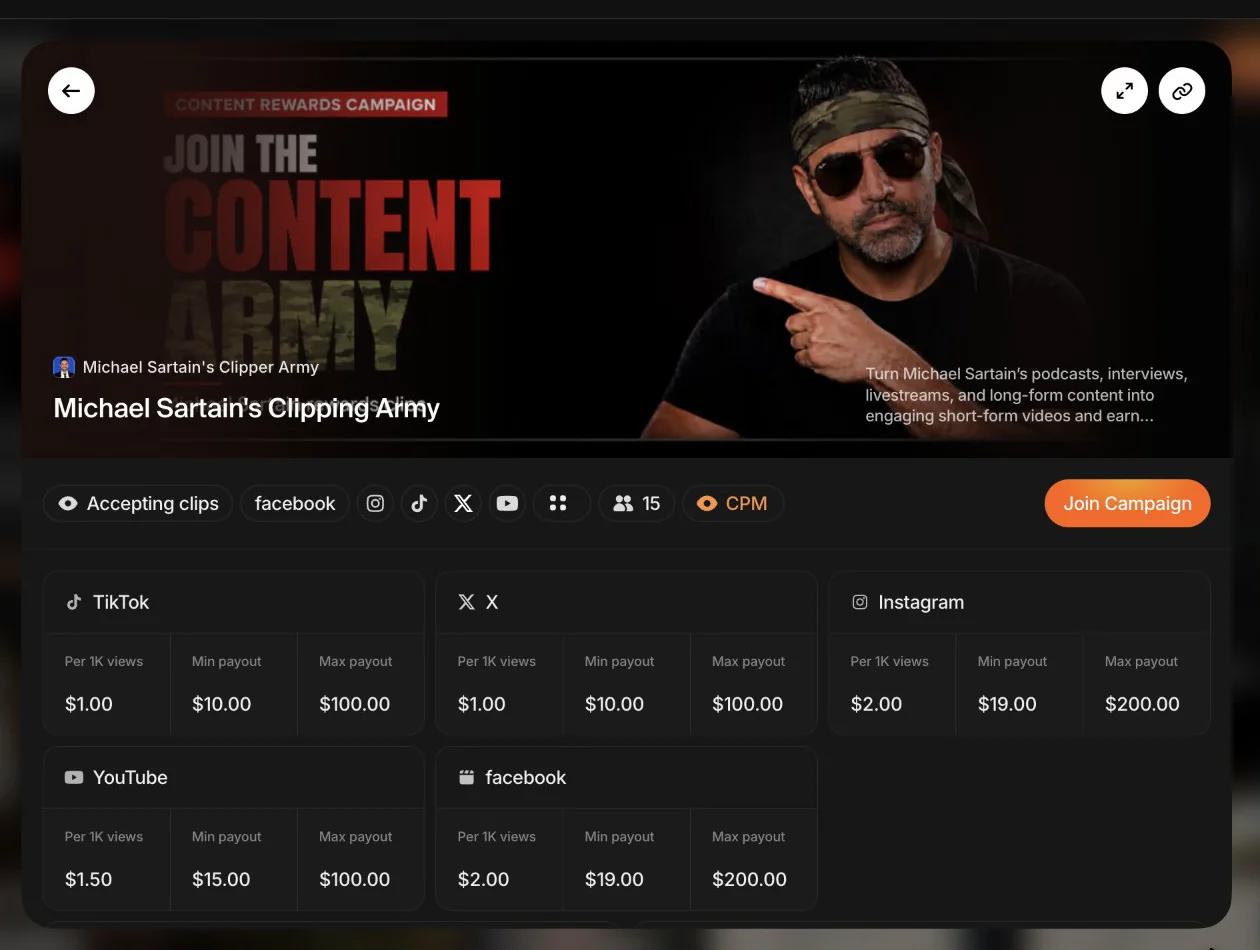
Read the numbers carefully. Each platform has a minimum and a maximum per clip: on TikTok a clip has to earn $10 (about 10,000 views) before it pays, and it stops earning at $100. Only approved clips get paid, and clips get rejected for missing tags or disclosure, the wrong platform, or editing the post after submitting it. On Content Rewards, the money lands about 10 days after approval.
The workflow is always the same: open the campaign, go to its reference material (usually the creator's YouTube channel), copy an episode's link with Share, paste it in Calliope and post the best clips. We did exactly that with Sartain's episode 164: one link, four clips.
The Master Prompt
Prefer to do it yourself, for free? This prompt turns an AI agent with terminal access (Claude Code, Codex, Cursor or similar) into a clipper on your own computer. It downloads the video with yt-dlp, transcribes it with Whisper, reads the transcript to pick the moments and cuts vertical clips with burned in captions using ffmpeg.
It works: we ran it end to end before publishing. But know what you're signing up for:
- Setup. You need Python, yt-dlp, Whisper and an ffmpeg build with subtitle support, which the default Mac install no longer includes.
- A decent computer. Whisper is the heavy part. On a recent Mac with an M5 Pro chip, one hour of audio took about 16 minutes to transcribe with the accurate model, and about 7 with the small one, which skipped the punctuation. An older laptop takes a lot longer.
- Slow and fragile. In our test, downloading a 10 minute range took over 5 minutes, an outdated yt-dlp failed with a 403 error, and the newest version of one Python library broke Whisper on install. Expect errors like these, and expect to paste them back to the agent.
- Bare results. One caption style, a fixed crop that doesn't follow anyone, no hook headlines, no split screen animations, no stock or AI B-roll, and no editor to fix a clip afterwards.
If that's fine with you, copy it as is:
You are a professional short-form clipper and a careful terminal operator. You turn long videos (podcasts, streams, interviews) into vertical clips that hold attention from the first second. You work locally on my computer, one step at a time, and before each step you tell me in one line what you are about to do.

GOAL
One YouTube video in, up to 10 vertical clips out: 1080x1920 MP4 files with burned-in captions, cut so each one opens on a hook and ends on a payoff.

STEP 0. ASK ME, THEN WAIT
Ask me all of this in one message and wait for my answers:
1. The YouTube URL.
2. How many clips (default 5, max 10) and how long (default 30 to 60 seconds).
3. Which part to scan, as start and end time. Default: the whole video. If it runs longer than 90 minutes, suggest scanning one 60 to 90 minute range at a time.
4. Anything specific to look for (optional).
5. The campaign rules, if I'm clipping for a campaign: required tags, disclosure, minimum length, banned topics.
6. Confirmation that I own the video or have the creator's permission to clip it, for example through an active clipping campaign. If I don't, stop here.

STEP 1. CHECK THE TOOLS
Create a folder named clips-<video id> with two empty subfolders, clips and previews, and work only inside it. Check each tool and print its version:
- ffmpeg and ffprobe, with the "subtitles" filter (libass). Check with: ffmpeg -hide_banner -filters | grep subtitles (Windows: findstr instead of grep). On macOS the default Homebrew ffmpeg no longer includes it: install ffmpeg-full (brew install ffmpeg-full) and call it by its full path, $(brew --prefix ffmpeg-full)/bin/ffmpeg (same for ffprobe). On Windows use a full build (winget install Gyan.FFmpeg). On Linux the distro package works (apt install ffmpeg).
- yt-dlp, updated to the latest version (brew upgrade yt-dlp or winget upgrade yt-dlp.yt-dlp if it's already installed; an old one fails with "403 Forbidden"), plus Deno, the JavaScript runtime yt-dlp needs for YouTube (brew install yt-dlp deno, or winget install yt-dlp.yt-dlp DenoLand.Deno). If ffmpeg is not on the PATH (ffmpeg-full on macOS), always give yt-dlp its folder: --ffmpeg-location "$(brew --prefix ffmpeg-full)/bin".
- Python 3.9 or newer, with faster-whisper in a virtual environment inside the folder: python3 -m venv .venv, then .venv/bin/pip install -U faster-whisper "av<19" (PyAV 19 breaks faster-whisper 1.2.1; on Windows the pip is .venv\Scripts\pip).
If something is missing, show me the exact install command for my system and wait for my OK. Never install anything without asking.

STEP 2. DOWNLOAD
1. Read the basics first and show them to me: yt-dlp --print "%(title)s | %(channel)s | %(duration_string)s" URL
2. Download the whole video at up to 1080p, then cut the part to scan into source.mp4 without re-encoding:
   yt-dlp -f "bv*[height<=1080]+ba/b[height<=1080]" --merge-output-format mp4 -o full.mp4 URL
   ffmpeg -ss START -to END -i full.mp4 -c copy source.mp4
   Exception: if the part to scan is less than a fifth of the video (say 10 minutes of a 1 hour video), download only that part instead. It's slower per minute but moves far less data:
   yt-dlp -f "bv*[height<=1080]+ba/b[height<=1080]" --merge-output-format mp4 --download-sections "*START-END" -o source.mp4 URL
3. Extract the audio: ffmpeg -i source.mp4 -vn -ac 1 -ar 16000 audio.wav
From here on, every timestamp is relative to source.mp4, not to the original video.
If YouTube answers "Sign in to confirm you're not a bot", ask me before retrying with --cookies-from-browser and my browser's name.

STEP 3. TRANSCRIBE
Use faster-whisper with word_timestamps=True and vad_filter=True. Default model: "large-v3-turbo", on device "cuda" with compute_type "float16" if I have an NVIDIA GPU, otherwise on the CPU with compute_type "int8". It downloads about 1.6 GB the first time. If my computer is slow or I'm in a hurry, use "small" instead: about twice as fast, but it may skip punctuation. Detect the language unless I gave you one. Print progress: this is the slow step.
Save transcript.json (segments with their words and start and end times) and transcript.txt (one line per segment, as [mm:ss.s] text).

STEP 4. FIND THE MOMENTS
Read the whole transcript.txt. Shortlist about twice as many candidates as the clips I asked for, then keep the best. A good clip:
- opens with a strong line in its first 3 seconds (a claim, a question, a number, a conflict), never with "so", "yeah" or "and";
- makes sense without the rest of the episode;
- has a payoff: an answer, a punchline, a twist or a clear conclusion;
- fits the length I asked for and doesn't overlap any other clip.
Start each clip on the first word of a sentence and end it on the last word of a sentence, using the word timestamps: start exactly at the first word's start and end 0.15 s after the last word's end. Whisper leaves no gap between words, so any padding before the first word catches the end of the previous one.
Save clips.json with: index, start, end, duration, title (max 8 words), the opening line and one sentence on why it works. Show me a table and wait for my OK before cutting.

STEP 5. CUT, REFRAME AND CAPTION
For each approved clip, NN being its number:
1. Captions: write clip_NN.ass from the word timestamps, with times relative to the clip start. PlayResX 1080 and PlayResY 1920. One to three words per line, 16 characters max, each line shown from its first word's start to its last word's end. Style: Arial Black (or any bold sans serif you find), size 80, uppercase, white text, black outline 6, no shadow, bottom centered (Alignment 2) with MarginV 560 and MarginL and MarginR 60.
2. Reframe to 9:16. The default works for any video: the full frame, scaled to 1080 wide, over a blurred and darkened copy of itself. If I ask for a tight crop instead, extract a frame from the middle of the clip, look at it, and pick the horizontal crop that centers the speaker. That crop is fixed: it won't follow anyone who moves or a camera that changes.
3. Encode in one pass, seeking before the input so cuts are frame accurate:
   ffmpeg -y -ss START -i source.mp4 -t DURATION -filter_complex "[0:v]split=2[bg][fg];[bg]scale=1080:1920:force_original_aspect_ratio=increase,crop=1080:1920,gblur=sigma=40,eq=brightness=-0.15[bgb];[fg]scale=1080:-2[fgs];[bgb][fgs]overlay=(W-w)/2:(H-h)/2,subtitles=clip_NN.ass[v]" -map "[v]" -map 0:a -c:v libx264 -preset medium -crf 20 -pix_fmt yuv420p -r 30 -af loudnorm=I=-14:TP=-1.5:LRA=11 -ar 48000 -c:a aac -b:a 160k -movflags +faststart clips/NN-title-slug.mp4
   Run ffmpeg from the project folder and pass the .ass file by its plain relative name: the subtitles filter breaks on paths with colons, commas or backslashes.

STEP 6. CHECK EVERYTHING
For every clip, ffprobe must report 1080x1920, an audio stream and a duration within 0.5 s of the plan. Transcribe the first 3 seconds of each clip again: if they don't start with the planned opening line, move the start 0.1 s later and re-render. Extract one frame at 40% of each clip into previews/ and, if you can view images, look at it: captions readable, nothing important cut off. Fix and re-render any clip that fails, up to 3 tries, then tell me what's wrong.

STEP 7. DELIVER
Give me a table: file, start and end in source.mp4, duration, title and opening line. Under it, one ready-to-post caption per clip (150 characters max, plus the campaign's required tags or disclosure if I gave you rules).

RULES
- Never upload, post or send anything. Everything stays in the project folder.
- Don't download or transcribe again if the file already exists.
- If a command fails, show me the error, fix it and retry. After 3 failed tries on the same step, stop and explain.
- Remember my answers from Step 0 for the whole session. Don't ask again.
FAQ
Is it legal to clip other people's videos?
Only with permission. Clipping campaigns give you exactly that: the creator pays you to clip their content. Posting someone else's clips on your own accounts without permission can get them taken down with a copyright claim, and platforms don't pay for reused content.
How much do clipping campaigns pay?
Most pay between $1 and $2 per 1,000 views. The median on Whop Content Rewards was about $1.10 when we checked. Each platform sets a minimum and a maximum per clip, and only approved clips get paid.
How many clips can I get from one video?
Up to 10 per batch. A YouTube video can be up to 10 hours long and each batch scans a range of up to 2 hours, so a long stream takes several batches.
Do I need editing skills?
No. Every clip comes out vertical and framed, with captions and a hook headline. The editor is there for when you want to push a clip further.
Start clipping
Same flow for a 3 hour podcast, an 8 hour stream or a full football match: paste a link, pick the range, generate. Fast clips and Captions only are unlimited on every paid plan, and Smart clips cost about $0.02 per minute on Creator. Start at calliopelabs.co/clipping.
Take the whole guide with you
Clipping guide with the Master Prompt (PDF, 5 pages). Same content, laid out to print or to keep on your phone while you build.
Keep reading
Make Vox style shorts with one prompt pack
The Image Prompt, the Video Prompt and a Master Agent Prompt that build the whole Vox style documentary collage template for you. Copy them verbatim.
Make a 2D viking video
A channel with 878 subscribers cleared 367,000 views in 13 days with one stick figure viking video. Clone the look, write your own script, generate.
Make a Simpsons style video
Lock the cartoon look with a reusable character sheet prompt, turn it into a template, and let Calliope shoot the whole thing.
Make an ancient humans video
Clone the look of a video that already works, turn it into a reusable template, and generate your own 2D animated history shorts.