Guide · 11 min read · Updated October 27, 2026
How to Make a 2D Stick Figure History Video with AI
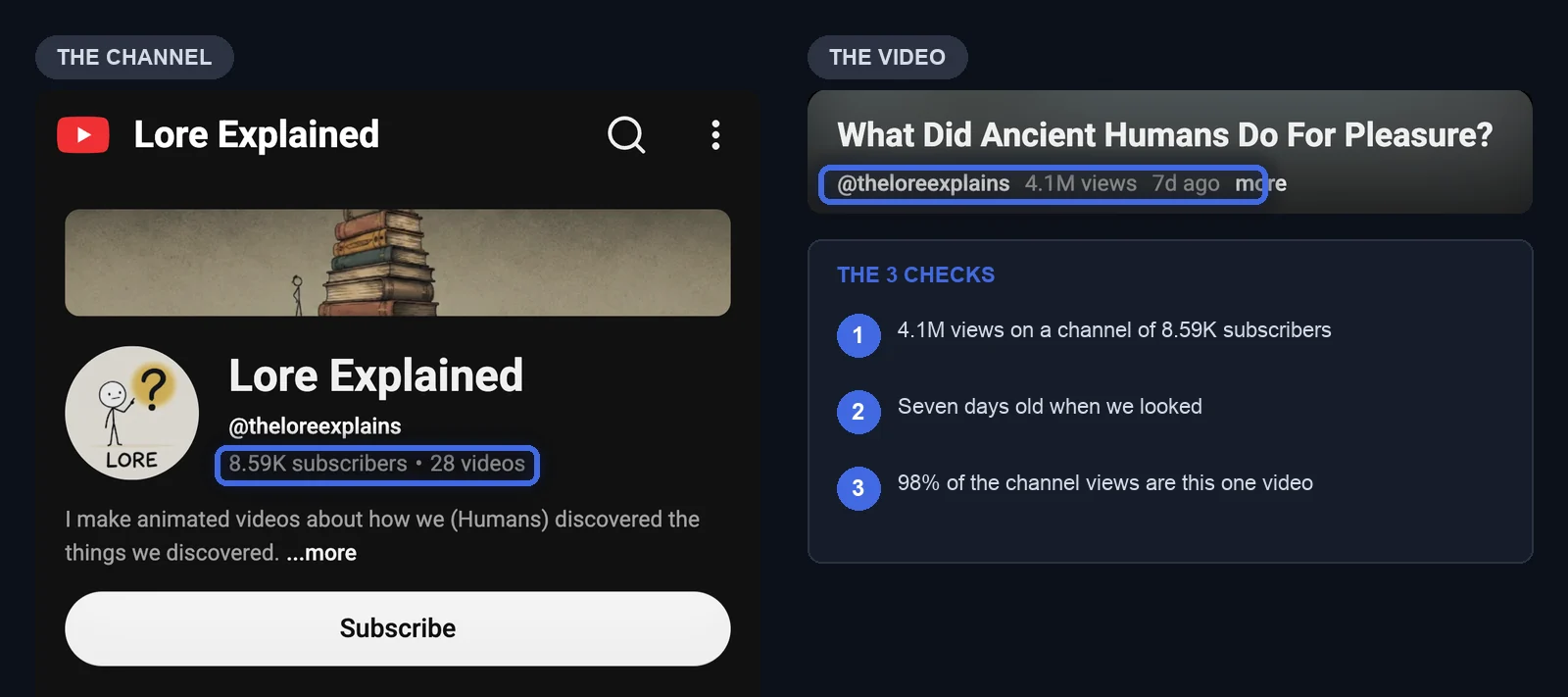
A history video from a channel with 8.59k subscribers reached 4.1 million views in 8 days. The whole look fits in three lines:
- Stick figures with a thick black outline
- Flat colored backgrounds, almost empty
- A new picture every 2 seconds
This guide shows how to check that a video like that is worth copying. Then it gives you the look as two prompts and 7 reference images, ready to copy, and three ways to use them. To test it we rebuilt the first minute of the video: 34 scenes, 68 seconds, generated in 9 minutes 42 seconds.
What you need
- The two prompts and the 7 reference images. They are at the end of this page
- A script for your video. Write your own, or use the narration of any video
- An image tool and a video editor such as CapCut, for the first two routes
- The video to compare with. Ours was What Did Ancient Humans Do For Pleasure? by Lore Explained
1. Check that the video is a real outlier
An outlier is a video that gets far more views than the rest of its channel. Not every big video is worth copying, so check four things first. All of them are on YouTube and none needs a tool.
- Views against subscribers. Ours had 4.1M views on a channel of 8.59K subscribers. A small channel with a huge video means the topic and the title did the work, not an audience
- Age. It was 7 days old when we looked. A video that gets this much in a week is a current signal, not an old hit
- The rest of the channel. Open the Videos tab and sort by Popular. The other 27 videos had a median of 1,183 views and the best one had 20,707. This single video held 98% of the channel's views. One hit and 27 misses means you copy the video, not the channel
- The exact title in the search bar. Put the title in quotes and search it. We found 43 videos with the same title: 19 before it and 23 after it. The best one before it had 917k views, from a channel with 3.15k subscribers, so the topic was proven. The 23 after it got 122k views together, so the copies did not take its views
Check how it is made
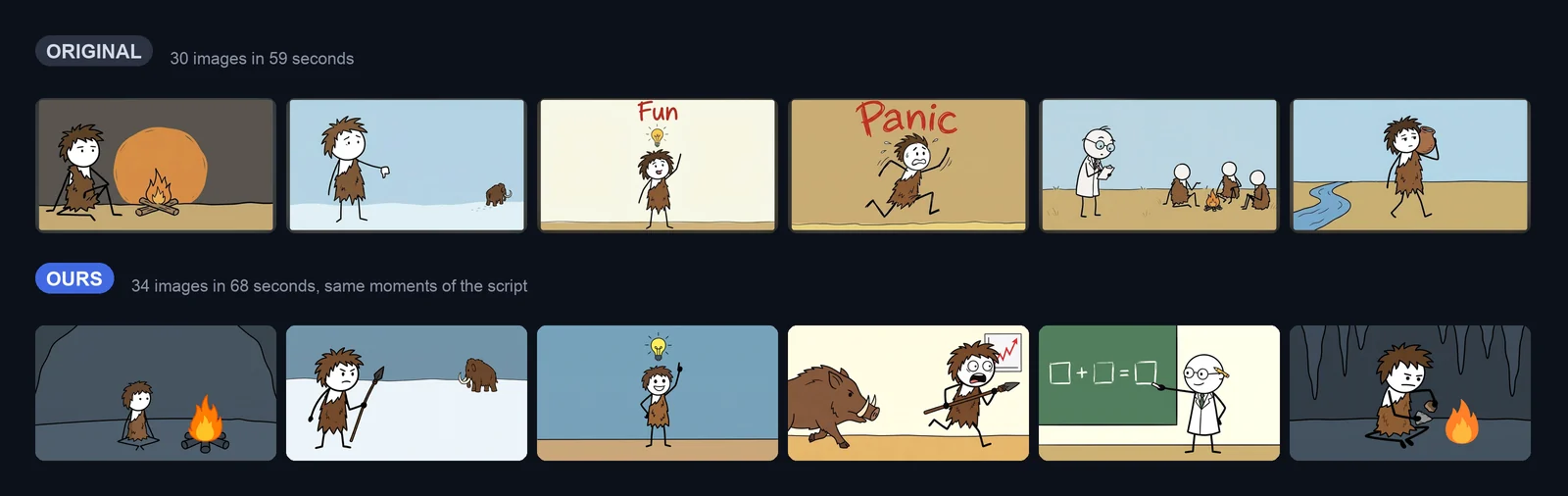
Watch the video with the sound off. This one is easy to copy: stick figures, flat backgrounds and one to three objects per picture. We counted 30 pictures in 59 seconds, about one every 2 seconds. We also compared the frames inside each picture, and they are identical. Nothing moves: it is a slideshow with a narrator. That decides how much work you need, because there is nothing to animate.
2. Copy the prompts and the 7 references first
Everything you need is at the end of this page: the prompts and the 7 references. Scroll down now, copy it all, then come back. Every route below starts from it.
There are five things down there:
- The Visual Style: how every image looks
- The Video Style: how the clips move. For this video it says there are no rules for motion, because the original does not move
- The 7 references: seven frames of the original, numbered 1 to 7, with a one line label each
- One sheet with the 7 references together, to attach in one go
- The Style Master prompt: it builds one test sheet of the look (step 5)
They describe the look of one video. Change the character and the places for yours.
3. Routes A and B: ChatGPT and CapCut, or our prompt directly
Route A: the manual route
This is how most people do it. It works. It is also the slowest way.
- Open ChatGPT and attach the 7 references. The sheet at the end puts all 7 in one image
- Paste the two prompts too
- Send the message below, then paste your script under it
- Generate every scene on its own, with any image tool. Our first minute needed 34 images
- Record your voiceover, or make it with any text to speech tool
- Put the images and the voiceover in CapCut or any video editor, and cut each image to the length of its sentence
- Export the video and upload it to YouTube
These images and prompts show the look of a video. Write one image prompt for each scene of the script below, in that same look. Keep the main character identical in every scene.Route B: the easy route
You do not need ChatGPT. The Visual Style at the end is already a fill in the blanks prompt. Put it at the start of every scene prompt and replace the words in [BRACKETS] with your scene: who, what he does, his face and where he is.
Here is one scene, filled in:
Minimalist 2D stick-figure caveman with a white circular head, messy brown hair, dot eyes, ragged brown fur tunic, and stick limbs, sitting on the ground with his chin on his hand, bored expression, flat cream environment.Then do the same as in route A: generate each scene, join them in CapCut, export and upload. If your tool animates images, put the Video Style at the start of every motion prompt.
4. Route C: paste them into a template
Making 34 images one by one is the slow part. In Calliope you can keep the prompts and the references in one reusable template. Then you paste your script once and every scene comes out in the same look.
- Open the Visuals Lab
- Paste the Visual Style and the Video Style into their boxes. Both are editable text boxes
- In the Visual References panel add the 7 images and type each label in its box, using the labels at the end. The panel should read 7/7
- Click Save Videos Template
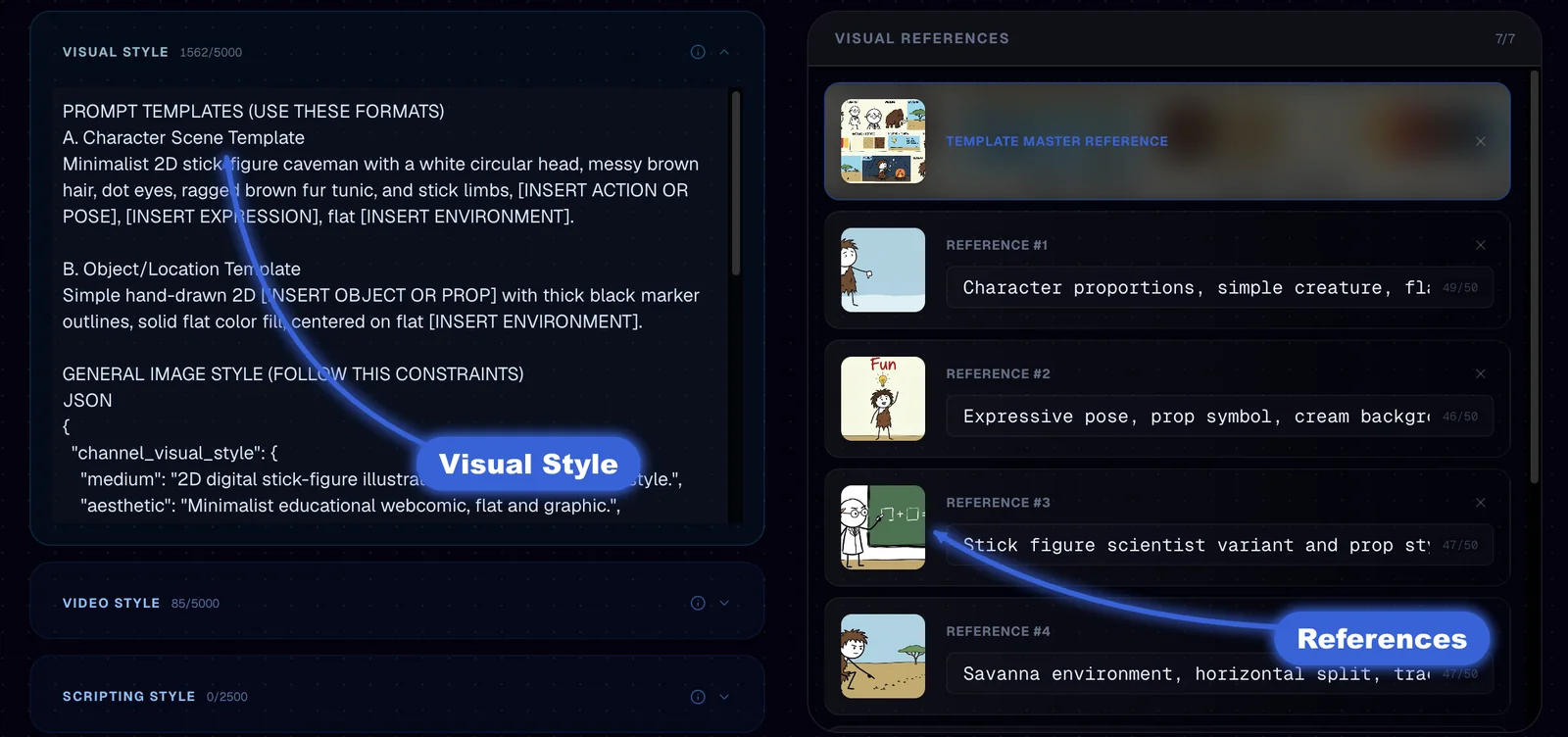
We did not write ours by hand. Calliope read the look from the video's YouTube link in 72 seconds, and the result is what you find at the end of this page, with no edits. A style read from a link can come out wrong (for another video of ours the first read came out as 3D and had to be rewritten), so we compared it with the video before going on. Do the same in the next step.
5. Test the style before you generate
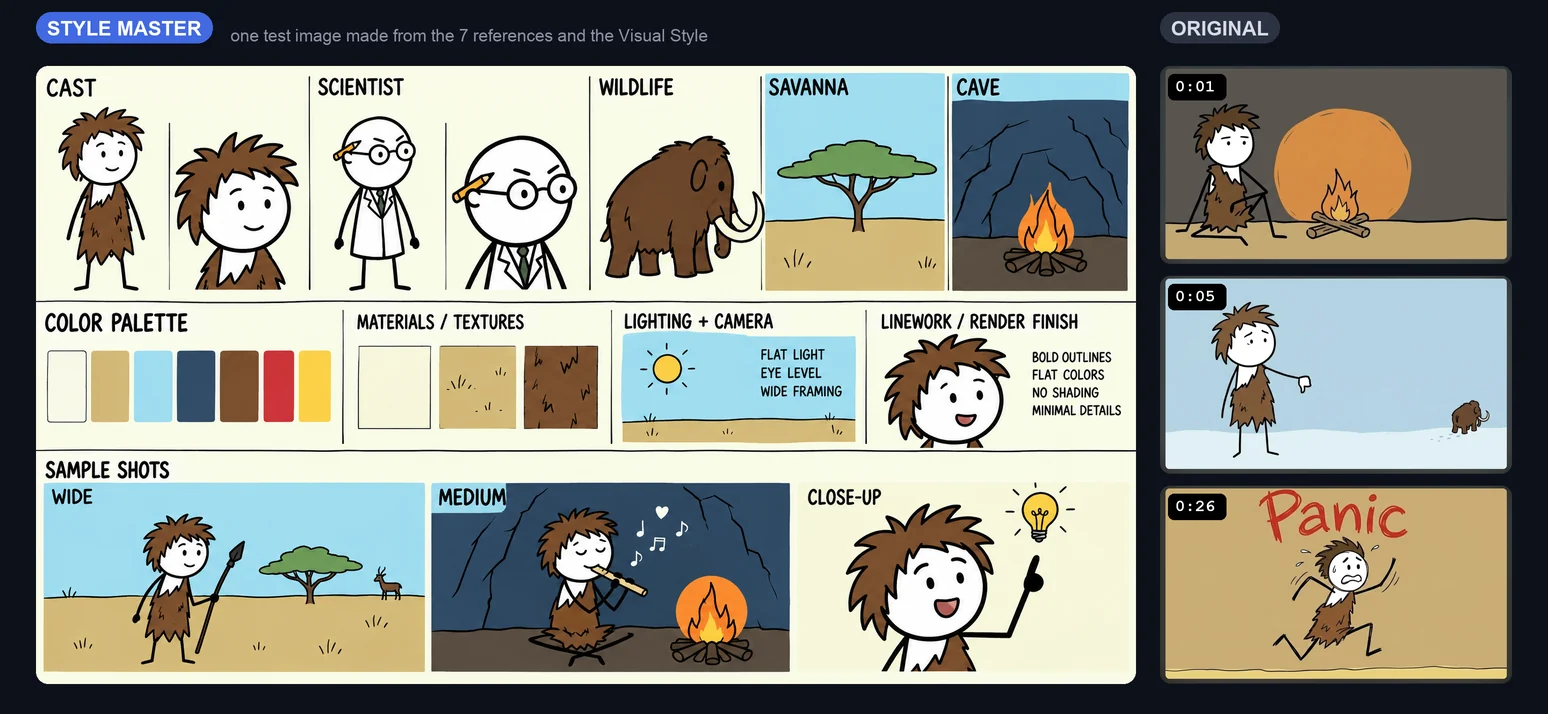
Click Test Style. It builds one image from your references and your Visual Style: the Style Master, a sheet with the cast, the places, a palette and sample shots. The result becomes the first reference of the template. Outside Calliope, you can send the Style Master prompt at the end of this page together with the 7 references to an image tool that takes reference images. We only ran it in Calliope.
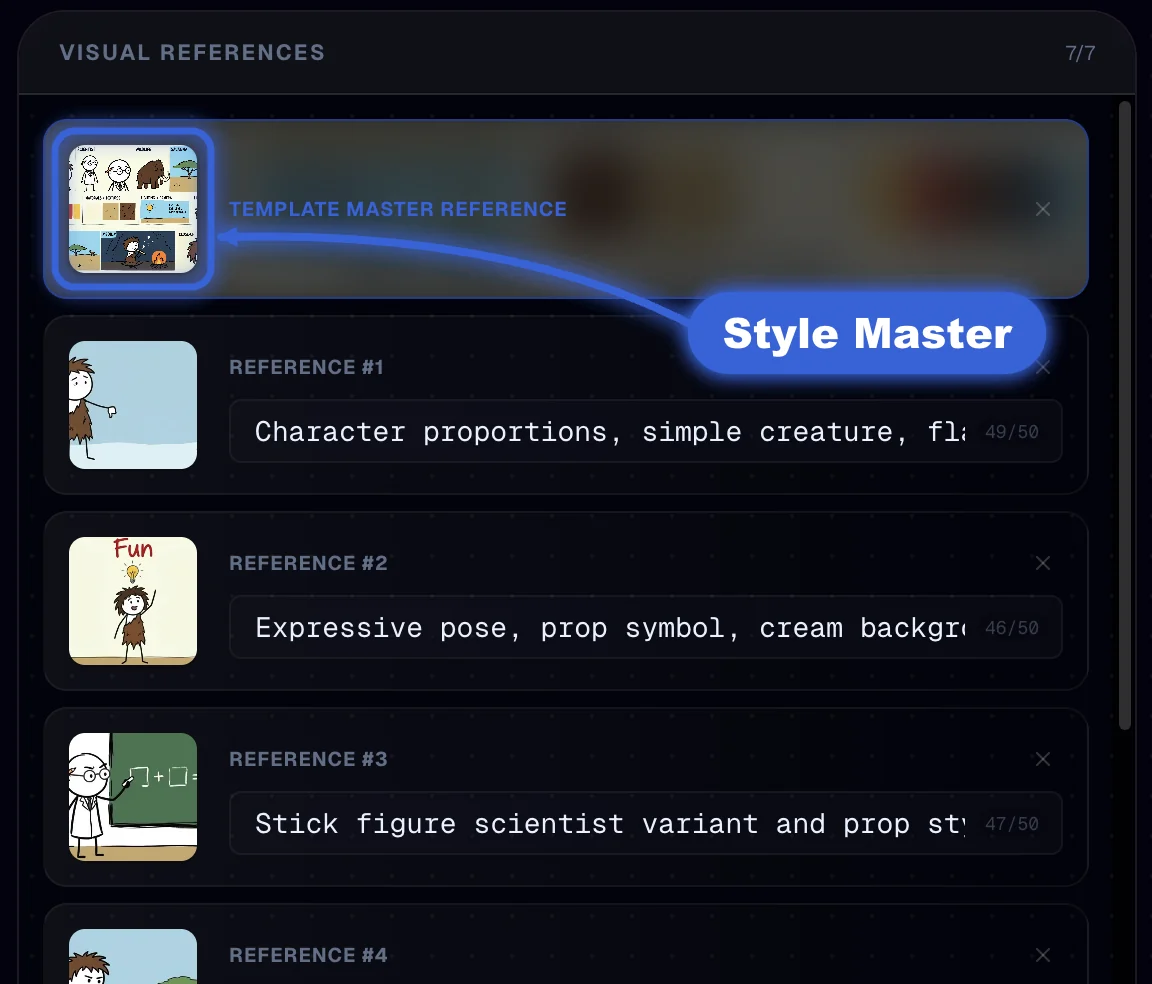
Put it next to frames of the original. In ours, the caveman, the thick outlines, the flat backgrounds and the palette read as the same family, so we went ahead. If yours looks like another channel, go back to step 4 and fix the texts. It is the quickest check there is.
6. Paste the narration and generate
For a fair test we used the original narration: the first 59 seconds, 177 words (1,019 characters), cut at the end of a sentence. We took it from the audio of the video with speech to text, not from YouTube's automatic captions, because captions add tags such as [music] and change the punctuation. A script needs 900 characters or more here. For a video you will publish, write your own script.
In the Creation Lab, pick your template under Templates, click Script and paste the narration, then open Visuals Quality and choose Extra High. Leave animation off. We did, because the original does not move, so there was nothing to animate. Start the generation. It finished in 9 minutes 42 seconds: 34 scenes in 68 seconds, with a narrator voice and 5 sound effects that Calliope added by itself.
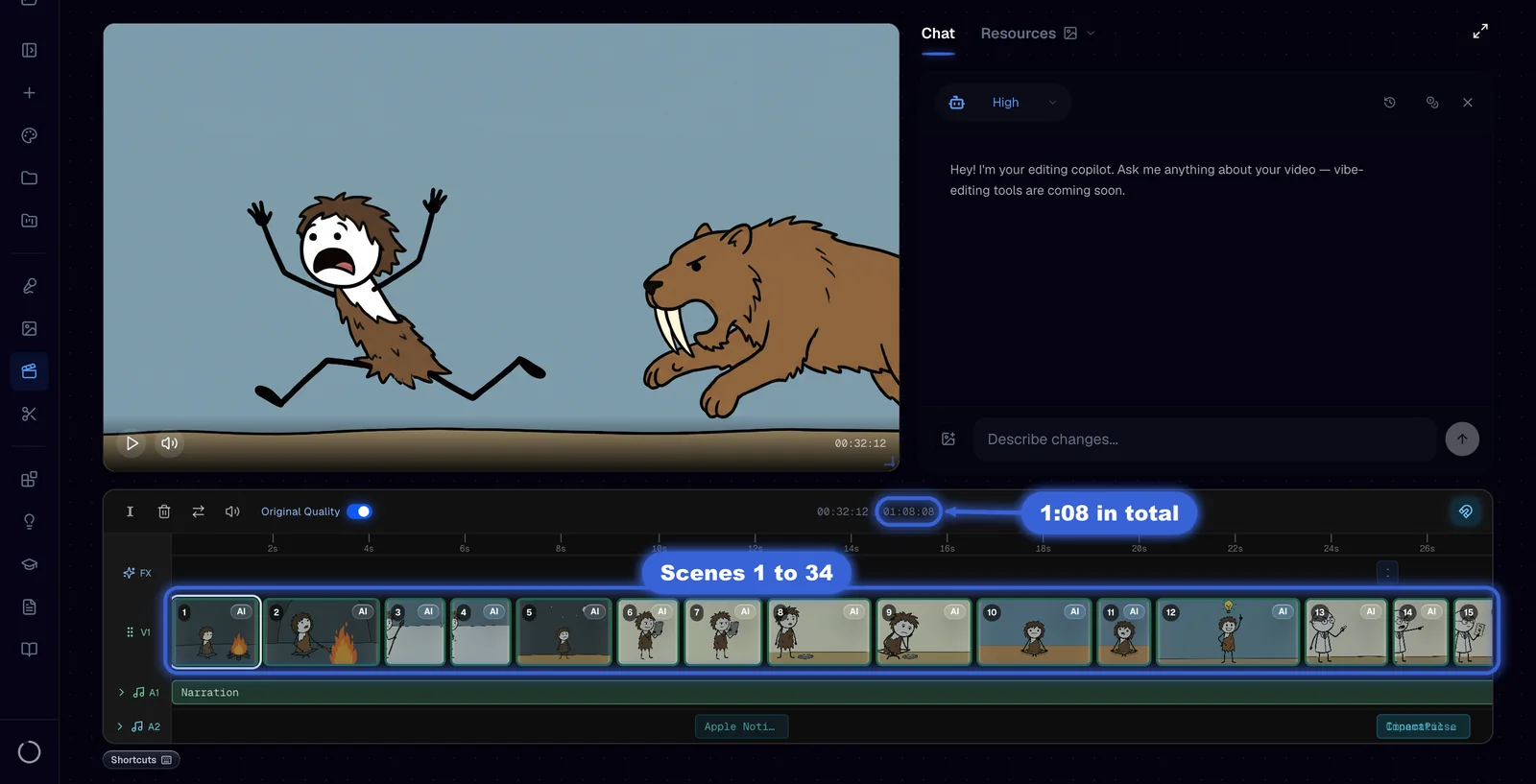
7. Look at every scene and fix the bad ones
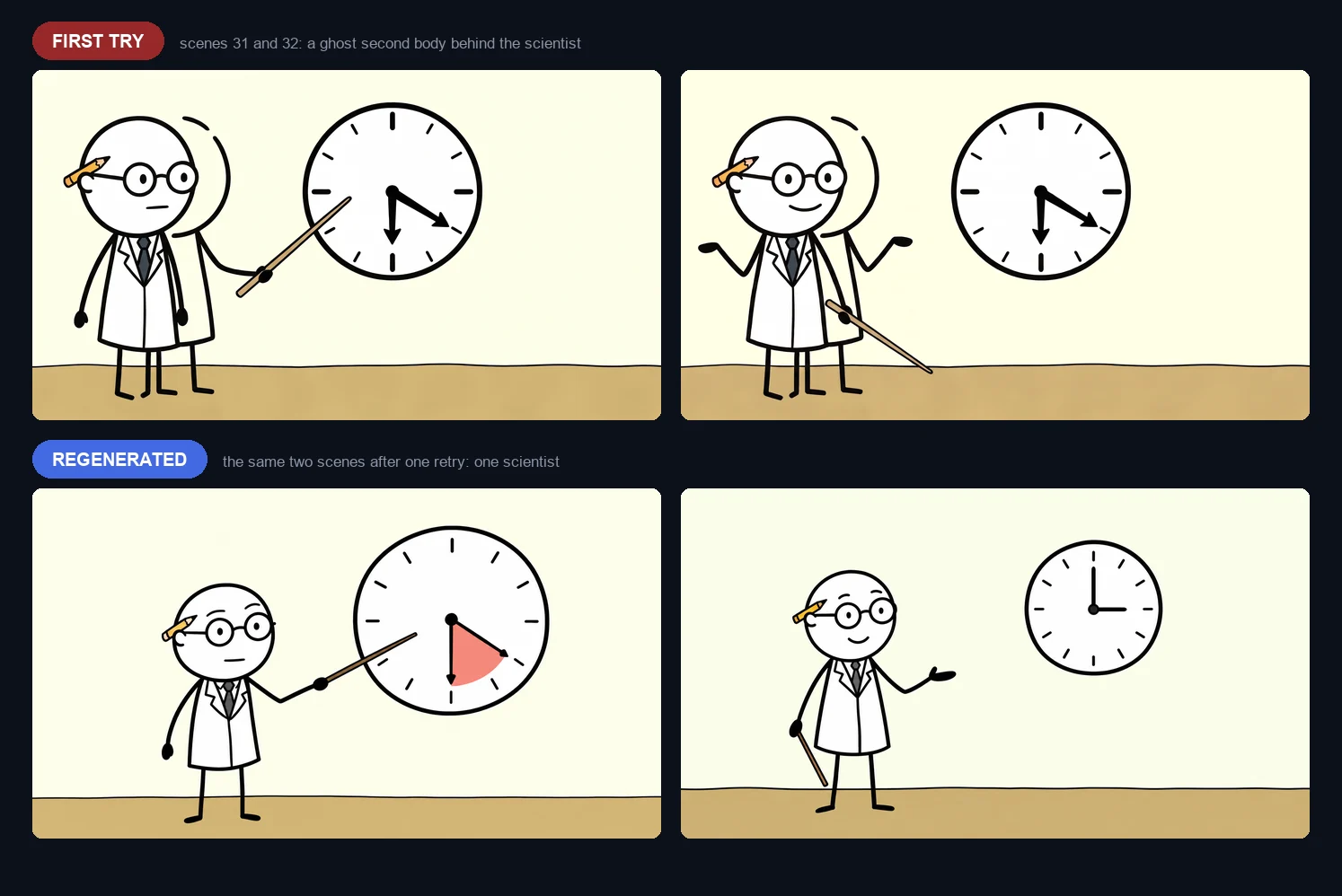
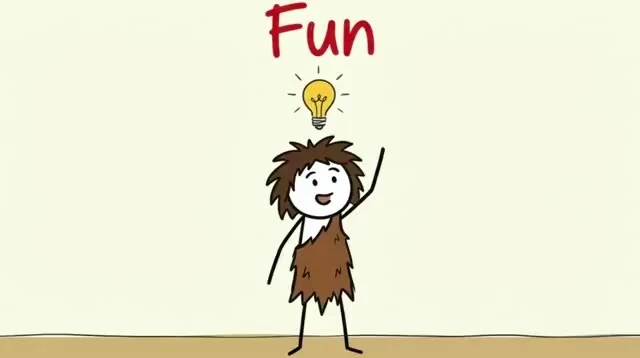
Open the editor and look at each scene at full size before you do anything else. We checked all 34. The caveman keeps the same design in the 22 scenes where he appears: spiky brown hair, round white head, ragged fur tunic. The scientist keeps his round glasses, pencil behind the ear and white coat in the 12 scenes where he appears.
Two scenes were wrong. In scenes 31 and 32 the scientist had a ghost second body behind him. You cannot see it in a thumbnail, and it is obvious on a full screen. We regenerated those two scenes in one batch: it took 104 seconds and both came out with a single scientist.
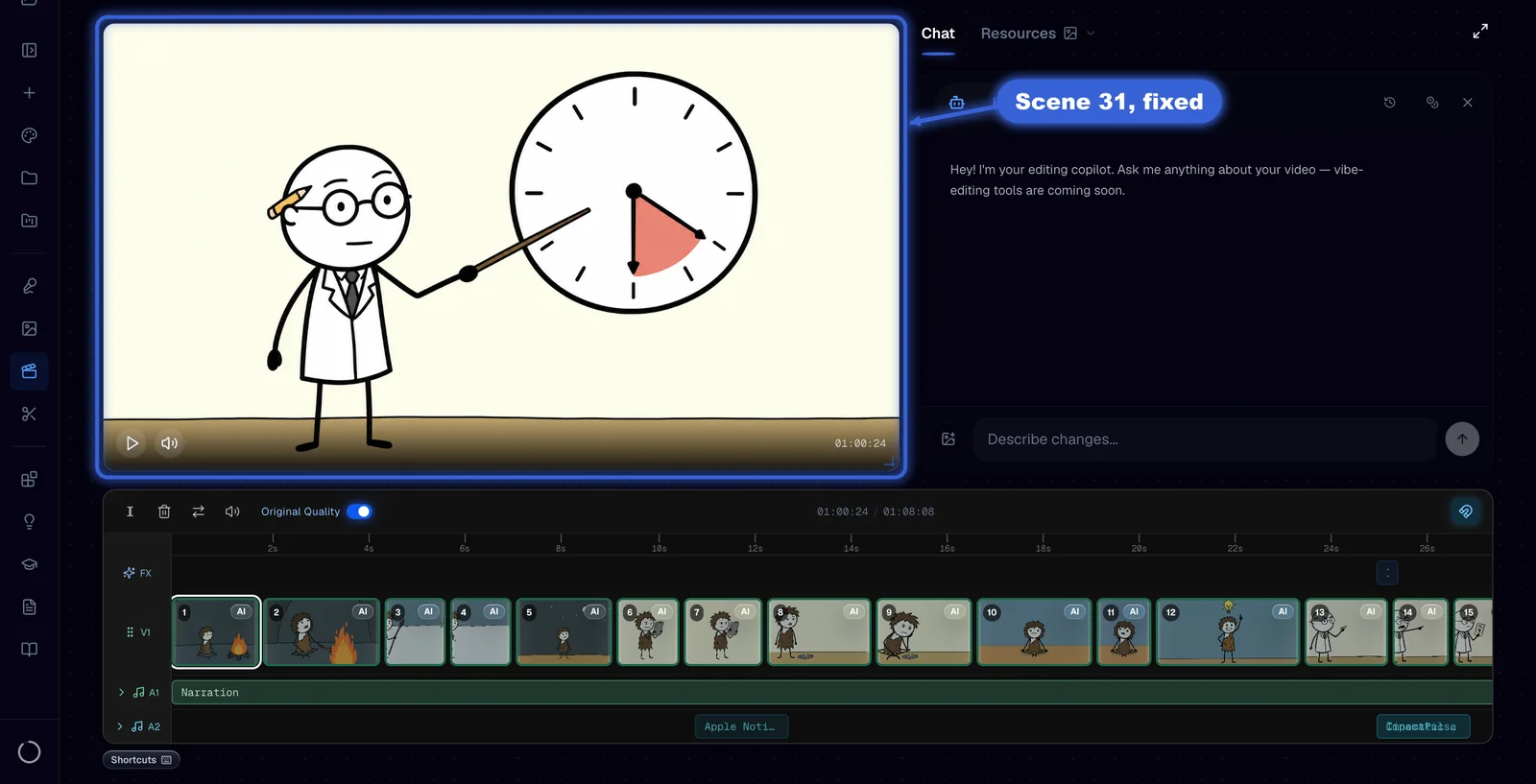
To get a file with the fixed scenes, click Confirm & Render in the header of the editor. It reads Render · Waiting after a change. We recorded the editor playing the fixed timeline instead of rendering again.
The result
The original has 30 pictures in 59.2 seconds. Ours has 34 pictures in 68.3 seconds: 2.01 seconds per picture against 1.97. Ours is longer because the narrator speaks 15% slower, 155 words per minute against 179. The original also has 8 text cards, such as 40,000 YEARS AGO, 6 HOURS and 24/7. Ours has none, so the pictures carry the whole script. If you want text cards, add them in your editor.
The prompts and the 7 references
Copy these as they are. They describe the look of one video, so change the character and the places for yours.
The 7 references
Save each image, or save the sheet with all 7 and attach it to ChatGPT in one go. Keep the numbers and the order.
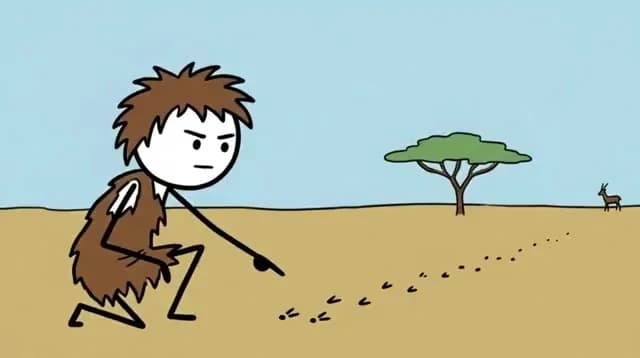

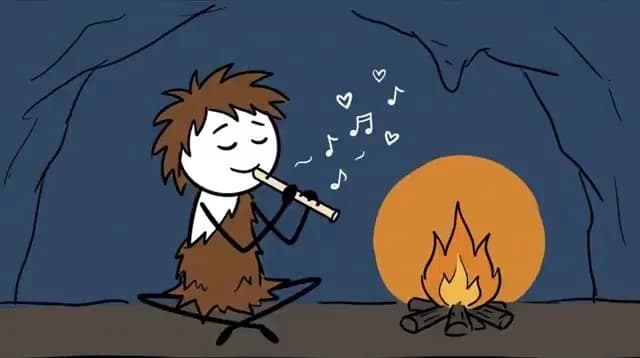
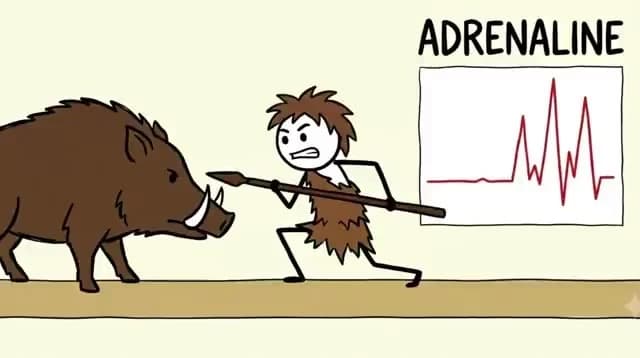
Reference labels
Type one label in the box of each reference, in this order.
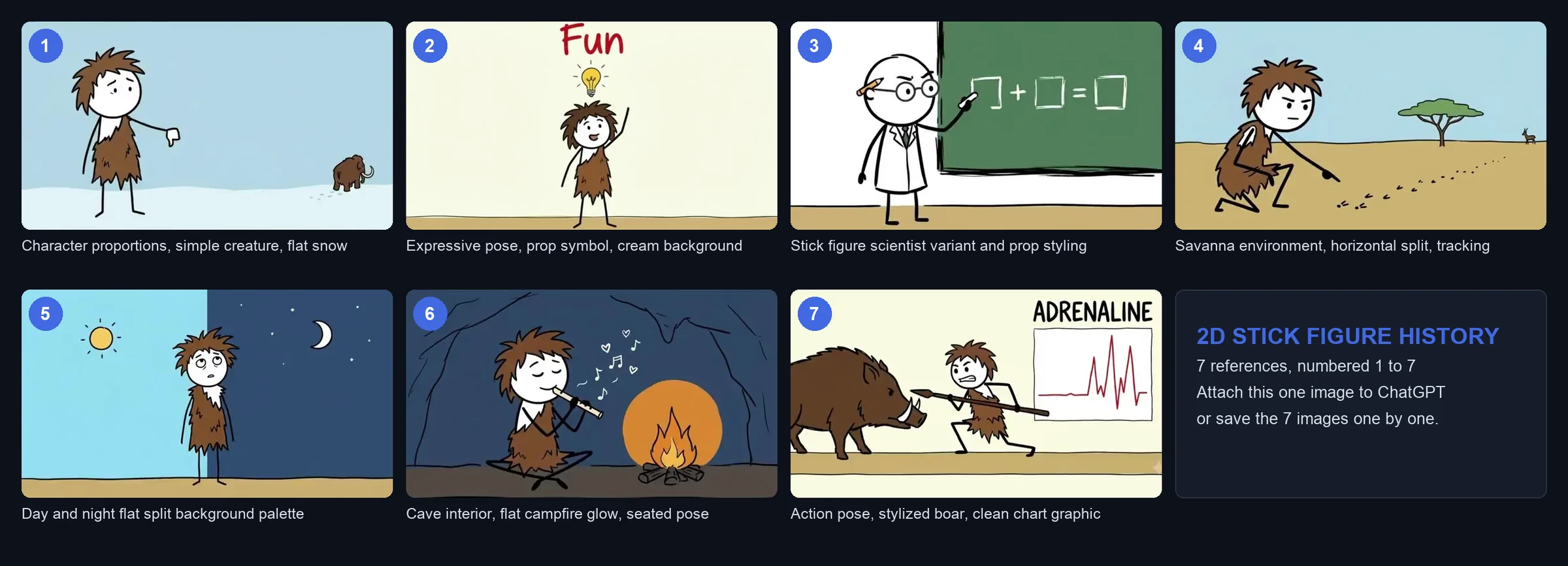
1 Character proportions, simple creature, flat snow
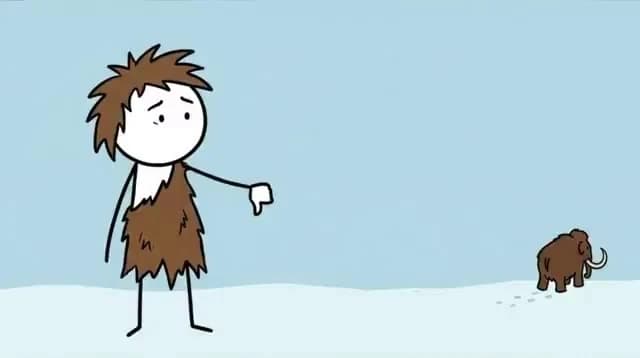
2 Expressive pose, prop symbol, cream background
3 Stick figure scientist variant and prop styling
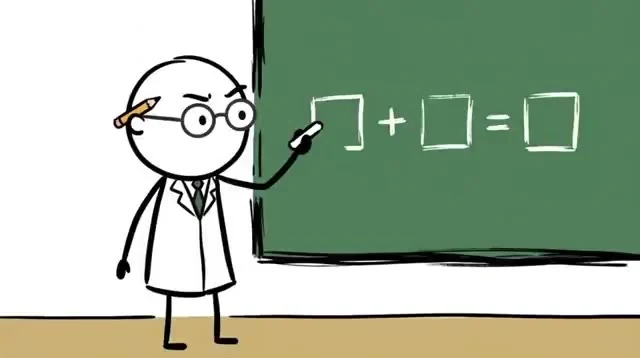
4 Savanna environment, horizontal split, tracking
5 Day and night flat split background palette
6 Cave interior, flat campfire glow, seated pose
7 Action pose, stylized boar, clean chart graphic
Visual Style
PROMPT TEMPLATES (USE THESE FORMATS)
A. Character Scene Template
Minimalist 2D stick-figure caveman with a white circular head, messy brown hair, dot eyes, ragged brown fur tunic, and stick limbs, [INSERT ACTION OR POSE], [INSERT EXPRESSION], flat [INSERT ENVIRONMENT].

B. Object/Location Template
Simple hand-drawn 2D [INSERT OBJECT OR PROP] with thick black marker outlines, solid flat color fill, centered on flat [INSERT ENVIRONMENT].

GENERAL IMAGE STYLE (FOLLOW THIS CONSTRAINTS)
JSON
{
  "channel_visual_style": {
    "medium": "2D digital stick-figure illustration, whiteboard cartoon style.",
    "aesthetic": "Minimalist educational webcomic, flat and graphic.",
    "palette": "Cream white, warm tan, muted sky blue, dark slate grey, fur brown, accent red and yellow.",
    "lighting": "Completely flat lighting; no directional light, drop shadows, or gradients.",
    "composition": "Centered eye-level framing, massive negative space, low horizon baseline.",
    "subject_treatment": "Thick black stick limbs, bold white circular heads, simple expressive line faces, flat-colored tunics.",
    "environment_treatment": "Extremely sparse horizontal bi-color bands or single flat-color backgrounds.",
    "render_notes": "Uniform thick black marker outlines, flat cell fills, zero textures or 3D depth."
  }
}

OTHER CONSTRAINTS
No 3D elements, CGI, or photorealism.
No gradients, soft shading, or lighting effects.
No textured brushes or complex backgrounds.
No detailed anatomy or facial shading.
Never generate watermarks, brand logos, or borders.
Video Style
No rules for video motion. Animate as desired and/or specified in other instructions.Style Master prompt
The prompt that builds the Style Master sheet of step 5. Where it says [PASTE THE VISUAL STYLE HERE], paste the Visual Style from above.
ULTRA IMPORTANT CONSTRAINTS: Never generate black or white bars or borders in the top/bottom (eg. cinematic bars).
Generate ONE 16:9 reference board for a content template. It will be given to the image model first, before every future scene of this template, so future scenes copy its look, cast and rules.
Board content, three bands with clean separated panels and short UPPERCASE labels only:
1. CAST & WORLD (largest band, top):
- 2 or 3 recurring character archetypes that the Visual Style implies (the kind of people, creatures or figures this template would show). For each one: full body view plus a face close-up, identity locked (same face, hair, body shape, outfit and recurring accessories in both views). Characters have visible faces (eyes, mouth) unless the Visual Style says otherwise.
- 2 signature environments of this template as small panels, each a complete usable location, not a material swatch.
2. RULES (middle band):
- COLOR PALETTE: 5 or 6 swatches, dominant colors first, accent colors last.
- MATERIALS / TEXTURES: a few chips showing the surfaces this style uses.
- LIGHTING + CAMERA: one panel showing the default light direction, contrast and lens feel of the template.
- LINEWORK / RENDER FINISH: one sample showing the edge treatment, shading and finish of the medium.
3. SAMPLE SHOTS (bottom band):
- 3 mini frames: WIDE, MEDIUM, CLOSE-UP. Each is a real scene of this template as it would be delivered, using the cast, environments and rules above.
Style rules:
- Obey the Visual Style exactly: medium, palette, linework, proportions and text style. Do not override it.
- The attached reference images are style evidence only: match their look, never paste, copy or collage them into the board.
- Every panel is rendered in the Visual Style itself, including labels and swatches.
- Never invent a story: no named people, dates, place names or events. Cast and sample shots are anonymous archetypes; the only text is the panel labels.
Layout rules:
- Clean reference-sheet layout, separated panels, consistent margins, one board.
- Labels are short uppercase words only. No title banners, no paragraphs, no captions, no UI elements, no watermarks, no logos.
- Never generate black or white bars or borders on the top or bottom of the image.
Visual Style: [PASTE THE VISUAL STYLE HERE]
REFERENCE IMAGES are attached in order. Labels: 1) Character proportions, simple creature, flat snow; 2) Expressive pose, prop symbol, cream background; 3) Stick figure scientist variant and prop styling; 4) Savanna environment, horizontal split, tracking; 5) Day and night flat split background palette; 6) Cave interior, flat campfire glow, seated pose; 7) Action pose, stylized boar, clean chart graphic. Use them only as style evidence and do not raw-include them in the image.
Explicit transformations in the reusable visual style override conflicting reference-image traits. Retain compatible subjects and layout from the references while respecting the scene's requested composition, slot and timing. Never copy reference watermarks, labels or incidental text.
Common mistakes
- Copying a video because it has views, without opening the rest of the channel
- Skipping the search for the exact title, and finding out later that the topic is crowded
- Animating a video whose original does not move
- Trusting the thumbnails of the scenes: look at every one at full size
- Using YouTube's automatic captions as the narration
FAQ
How do I find an outlier on YouTube?
Compare the views with the subscribers of the channel, check how old the video is, open the other videos of the channel to see how many views they get, and search the exact title in quotes. An outlier has many views on a small channel, a few days or weeks of age, and a channel where the other videos are far below it. Step 1 shows each check with our numbers.
How do I know a topic is not saturated?
Search the exact title in quotes and count the copies. We found 43 videos with the same title as our outlier. The ones before it had real views, so the topic was proven. The 23 after it got 122k views together, against 4.1M for the outlier: copies came late and took little.
Do I need to animate a stick figure video?
Check the original first. If the frames inside each picture are identical, nothing moves and there is nothing to animate. In ours, 30 pictures in 59 seconds and none of them moved, so we left animation off.
How long does it take to generate a one minute video?
Ours took 9 minutes 42 seconds to generate 34 scenes and 68 seconds of video. Repairing two bad scenes took another 104 seconds.
Is it legal to copy the style of a YouTube video?
You are copying a visual system, not a video: how things are drawn and colored, none of which is the other channel's footage, script or narration. Write your own script, pick your own topic and never re-upload someone else's clips or voice track. We used the original narration once, to test the template under the same conditions. If a specific case worries you, get your own legal read on it.
Make your own
Same steps for any video you want to learn from: check that it is an outlier, copy the look, test it, generate and look at every scene. Start at calliopelabs.co
Take the whole guide with you
2D stick figure history guide with the prompts and the 7 references (PDF, 5 pages). Same content, laid out to print or to keep on your phone while you build.
Keep reading
Make a 2D Saudi Arabia style video
A cartoon explainer reached 4.1M views in 11 days. Copy its look with two prompts and 7 reference images: by hand, with ChatGPT, or in one template.
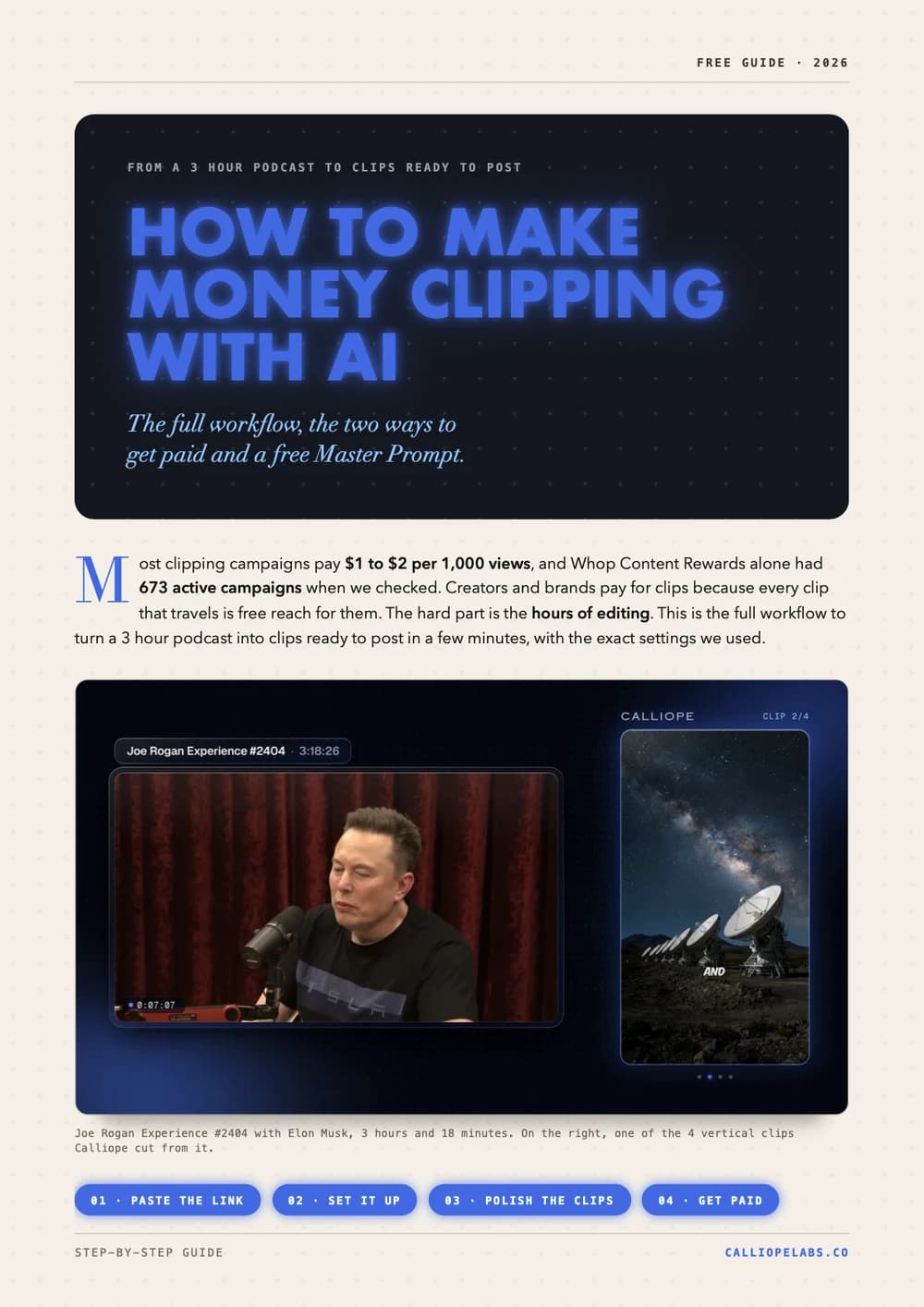
Make money clipping with AI
Turn a 3 hour podcast into vertical clips in minutes, find campaigns that pay $1 to $2 per 1,000 views, and copy a free Master Prompt for AI agents.
Make Vox style shorts with one prompt pack
The Image Prompt, the Video Prompt and a Master Agent Prompt that build the whole Vox style documentary collage template for you. Copy them verbatim.
Make a 2D viking video
A channel with 878 subscribers cleared 367,000 views in 13 days with one stick figure viking video. Clone the look, write your own script, generate.
Make a Simpsons style video
Lock the cartoon look with a reusable character sheet prompt, turn it into a template, and let Calliope shoot the whole thing.
Make an ancient humans video
Clone the look of a video that already works, turn it into a reusable template, and generate your own 2D animated history shorts.